Note
Access to this page requires authorization. You can try signing in or changing directories.
Access to this page requires authorization. You can try changing directories.
This guide provides detailed information to help you succeed in communicating with Azure Service Bus by using the Java Message Service (JMS) 2.0 API.
As a Java developer, if you're new to Azure Service Bus, consider reading the following articles.
| Getting started | Concepts |
|---|---|
Java Message Service (JMS) programming model
The Java Message Service API programming model is described in the following sections:
Note
Azure Service Bus Premium tier supports JMS 1.1 and JMS 2.0.
Azure Service Bus - Standard tier supports limited JMS 1.1 functionality. For more details, see this documentation.
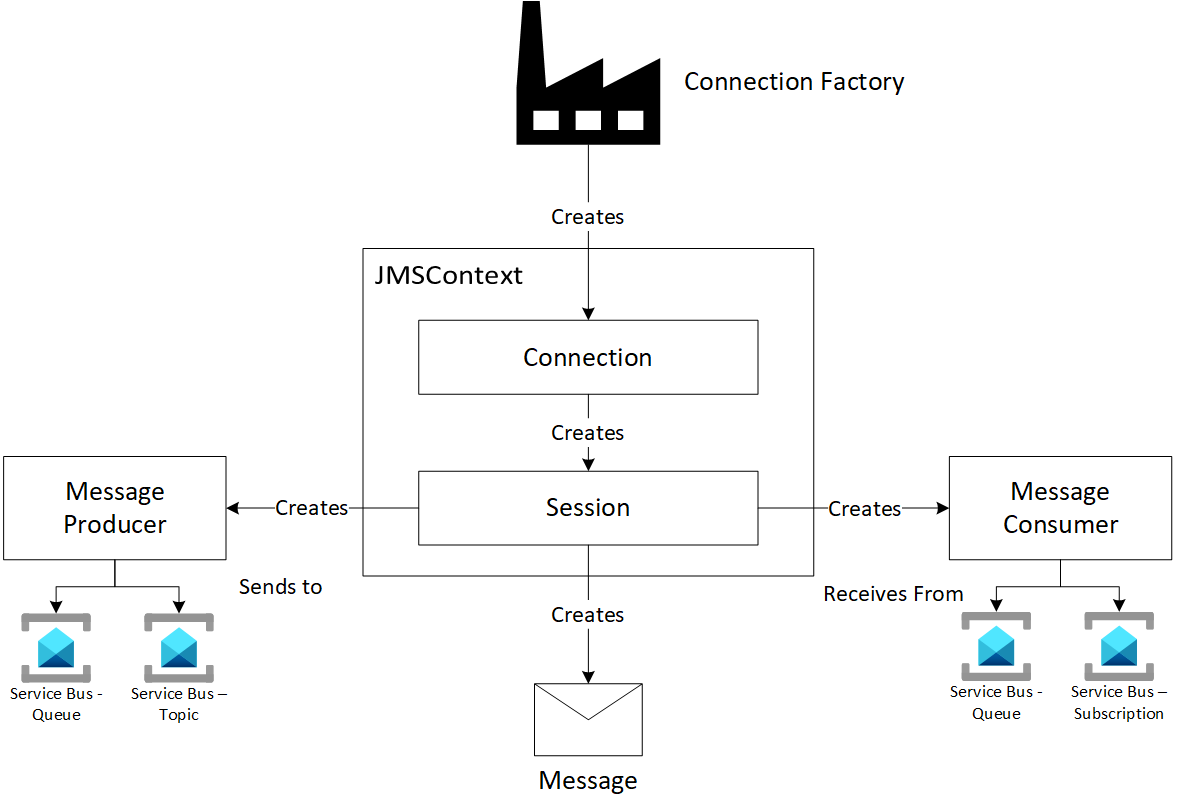
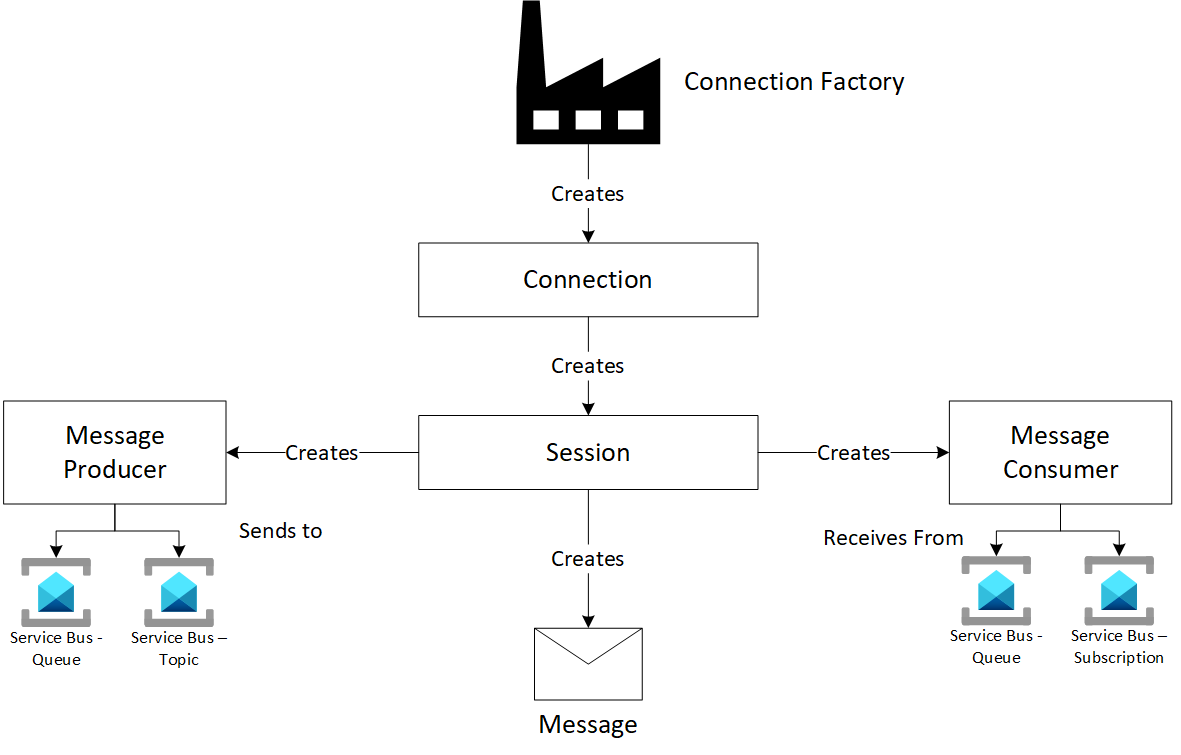
JMS - Building blocks
Use the following building blocks to communicate with the JMS application.
Note
This guide is adapted from the Oracle Java EE 6 Tutorial for Java Message Service (JMS).
For a better understanding of the Java Message Service (JMS), refer to this tutorial.
Connection factory
Note
The azure-servicebus-jms library is available in two variants: com.azure:azure-servicebus-jms (version 2.0.0+) for Jakarta EE (jakarta.jms.*) and com.microsoft.azure:azure-servicebus-jms (version 1.0.x) for Java EE (javax.jms.*). For guidance on choosing the right artifact, see Jakarta EE and javax support.
The client uses the connection factory object to connect to the JMS provider. The connection factory encapsulates a set of connection configuration parameters that the administrator defines.
Each connection factory is an instance of the ConnectionFactory, QueueConnectionFactory, or TopicConnectionFactory interface.
To simplify connecting to Azure Service Bus, these interfaces are implemented through ServiceBusJmsConnectionFactory, ServiceBusJmsQueueConnectionFactory, or ServiceBusJmsTopicConnectionFactory respectively.
Important
Java applications that use the JMS 2.0 API can connect to Azure Service Bus by using the connection string or by using a TokenCredential to leverage Microsoft Entra backed authentication. When you use Microsoft Entra backed authentication, ensure to assign roles and permissions to the identity as needed.
Create a system assigned managed identity on Azure, and use this identity to create a TokenCredential.
TokenCredential tokenCredential = new DefaultAzureCredentialBuilder().build();
You can instantiate the connection factory with the following parameters:
- Token credential - Represents a credential capable of providing an OAuth token.
- Host - The hostname of the Azure Service Bus Premium tier namespace.
- ServiceBusJmsConnectionFactorySettings property bag, which contains:
connectionIdleTimeoutMS- idle connection timeout in milliseconds.traceFrames- boolean flag to collect AMQP trace frames for debugging.- Other configuration parameters.
Create the factory as shown in the following example. The token credential and host are required parameters, but the other properties are optional.
String host = "<YourNamespaceName>.servicebus.windows.net";
ConnectionFactory factory = new ServiceBusJmsConnectionFactory(tokenCredential, host, null);
JMS destination
A destination is the object a client uses to specify the target of the messages it produces and the source of the messages it consumes.
Destinations map to entities in Azure Service Bus - queues (in point to point scenarios) and topics (in pub-sub scenarios).
Connections
A connection encapsulates a virtual connection with a JMS provider. With Azure Service Bus, it represents a stateful connection between the application and Azure Service Bus over AMQP.
Create a connection from the connection factory as shown in the following example:
Connection connection = factory.createConnection();
Sessions
A session is a single-threaded context for producing and consuming messages. Use it to create messages, message producers, and consumers. It also provides a transactional context to group sends and receives into an atomic unit of work.
Create a session from the connection object as shown in the following example:
Session session = connection.createSession(false, Session.CLIENT_ACKNOWLEDGE);
Note
JMS API doesn't support receiving messages from service bus queues or topics with messaging sessions enabled.
Session modes
Create a session with any of the following modes.
| Session modes | Behavior |
|---|---|
| Session.AUTO_ACKNOWLEDGE | The session automatically acknowledges a client's receipt of a message either when the session successfully returns from a call to receive or when the message listener the session calls to process the message successfully returns. |
| Session.CLIENT_ACKNOWLEDGE | The client acknowledges a consumed message by calling the message's acknowledge method. |
| Session.DUPS_OK_ACKNOWLEDGE | This acknowledgment mode instructs the session to lazily acknowledge the delivery of messages. |
| Session.SESSION_TRANSACTED | Pass this value as the argument to the method createSession(int sessionMode) on the Connection object to specify that the session should use a local transaction. |
If you don't specify the session mode, the default is Session.AUTO_ACKNOWLEDGE.
JMSContext
Note
JMSContext is defined as part of the JMS 2.0 specification.
JMSContext combines the functionality provided by the connection and session object. You create it from the connection factory object.
JMSContext context = connectionFactory.createContext();
JMSContext modes
Just like the Session object, you can create the JMSContext with the same acknowledge modes as mentioned in Session modes.
JMSContext context = connectionFactory.createContext(JMSContext.AUTO_ACKNOWLEDGE);
If you don't specify a mode, the default is JMSContext.AUTO_ACKNOWLEDGE.
JMS message producers
A message producer is an object that you create by using a JMSContext or a Session. Use it to send messages to a destination.
You can create it as a stand-alone object, as shown in the following example:
JMSProducer producer = context.createProducer();
Or you can create it at runtime when you need to send a message.
context.createProducer().send(destination, message);
JMS message consumers
A message consumer is an object that a JMSContext or a Session creates. Use it to receive messages sent to a destination. Create it as shown in the following example:
JMSConsumer consumer = context.createConsumer(dest);
Synchronous receives via receive() method
The message consumer provides a synchronous way to receive messages from the destination through the receive() method.
If you don't specify arguments or timeout, or if you specify a timeout of 0, the consumer blocks indefinitely unless the message arrives, or the connection is broken (whichever is earlier).
Message m = consumer.receive();
Message m = consumer.receive(0);
When you provide a non-zero positive argument, the consumer blocks until that timer expires.
Message m = consumer.receive(1000); // time out after one second.
Asynchronous receives with JMS message listeners
A message listener is an object that you use for asynchronous handling of messages on a destination. It implements the MessageListener interface, which contains the onMessage method where the specific business logic must live.
You must instantiate a message listener object and register it against a specific message consumer by using the setMessageListener method.
Listener myListener = new Listener();
consumer.setMessageListener(myListener);
Consuming from topics
You create JMS Message Consumers against a destination, which can be a queue or a topic.
Consumers on queues are simply client-side objects that live in the context of the Session (and Connection) between the client application and Azure Service Bus.
Consumers on topics, however, have two parts -
- A client-side object that lives in the context of the Session (or JMSContext), and
- A subscription that is an entity on Azure Service Bus.
The subscriptions are documented here and can be one of the following types:
- Shared durable subscriptions
- Shared non-durable subscriptions
- Unshared durable subscriptions
- Unshared non-durable subscriptions
JMS Queue Browsers
The JMS API provides a QueueBrowser object that the application can use to browse the messages in the queue and display the header values for each message.
You can create a Queue Browser by using the JMSContext, as shown in the following example:
QueueBrowser browser = context.createBrowser(queue);
Note
JMS API doesn't provide an API to browse a topic.
This limitation exists because the topic itself doesn't store the messages. As soon as the message is sent to the topic, it's forwarded to the appropriate subscriptions.
JMS message selectors
Receiving applications can use message selectors to filter the messages they receive. By using message selectors, the receiving application offloads the work of filtering messages to the JMS provider (in this case, Azure Service Bus) instead of taking that responsibility itself.
You can use selectors when creating any of the following consumers:
- Shared durable subscription
- Unshared durable subscription
- Shared non-durable subscription
- Unshared non-durable subscription
- Queue consumer
- Queue browser
Note
Service Bus selectors don't support LIKE and BETWEEN SQL keywords.
Scheduled messages (delivery delay)
JMS 2.0 supports scheduling a message for future delivery by using the setDeliveryDelay method on a MessageProducer or JMSProducer. When you set this property, Service Bus accepts the message but only makes it visible to consumers after the delay period elapses.
MessageProducer producer = session.createProducer(queue);

// Schedule a message for delivery 30 seconds from now
producer.setDeliveryDelay(30000);
producer.send(session.createTextMessage("Scheduled message"));
For a complete working sample, see QueueScheduledSend.java in the azure-servicebus-jms-samples repository.
Connection factory selection and resilience
When you use ServiceBusJmsConnectionFactory in Spring Boot or other frameworks that manage JMS connections, choose the right connection factory wrapper for senders and listeners to ensure reliable operation.
Recommended configuration
| Role | Connection factory | Why |
|---|---|---|
Senders (JmsTemplate) |
CachingConnectionFactory wrapping ServiceBusJmsConnectionFactory |
JmsTemplate creates and closes a connection per send by default. CachingConnectionFactory maintains a single AMQP connection and caches sessions, avoiding connection churn that can exhaust broker resources under load. |
Listeners (@JmsListener, DefaultMessageListenerContainer) |
Raw ServiceBusJmsConnectionFactory (unwrapped) |
Each listener container gets its own AMQP connection with independent lifecycle. If a connection fails (token expiry, gateway upgrade, network blip), only that listener is affected, and Spring recreates the connection automatically. |
What to avoid for listeners
Warning
Never use SingleConnectionFactory with listener containers. It forces all listeners to share a single JMS connection. If that connection is disrupted for any reason, all listeners lose connectivity simultaneously and can't recover independently. Use the raw ServiceBusJmsConnectionFactory so each listener container manages its own connection.
CachingConnectionFactory on listener containers can also cause problems because cached sessions might reference a stale underlying connection. For listeners, the raw factory ensures each container can create a fresh connection independently.
Spring Cloud Azure defaults
If you use spring-cloud-azure-starter-servicebus-jms (version 6.2.0+), the starter applies this factory separation by default:
spring.jms.servicebus.pool.enabled |
spring.jms.cache.enabled |
Sender factory | Listener factory |
|---|---|---|---|
| (not set) | (not set) | CachingConnectionFactory |
ServiceBusJmsConnectionFactory |
| (not set) | true |
CachingConnectionFactory |
CachingConnectionFactory |
| (not set) | false |
ServiceBusJmsConnectionFactory |
ServiceBusJmsConnectionFactory |
true |
(not set) | JmsPoolConnectionFactory |
JmsPoolConnectionFactory |
On older versions (pre-6.2.0), both senders and listeners use ServiceBusJmsConnectionFactory by default, which causes senders to create a new connection per send.
Adding an exception listener
Without an exception listener, connection drops are completely silent. Add a jakarta.jms.ExceptionListener to both sender and listener factories for observability:
connection.setExceptionListener(exception -> {
    log.error("JMS connection error: {}", exception.getMessage(), exception);
});
In Spring Boot, set the exception listener on the CachingConnectionFactory (for senders) and the DefaultJmsListenerContainerFactory (for listeners).
For a complete working sample showing all of these patterns, see the Spring Boot JMS Resilience sample in the azure-servicebus-jms-samples repository.
Dead letter queues
Every queue and topic subscription in Azure Service Bus has an associated dead letter queue (DLQ). The system automatically moves messages that it can't deliver or process to the DLQ. For example, the system moves a message to the DLQ when the message exceeds the maximum delivery count or its time-to-live (TTL) expires.
Important
To move TTL-expired messages to the DLQ, enable dead-lettering on message expiration for the queue or subscription. Without this setting, the system silently discards expired messages. For configuration steps, see Enable dead lettering for a queue or subscription.
In JMS, you access the DLQ as a separate destination by constructing the full path and creating a JmsQueue with it. No special API is required.
Queue DLQ path format:
<queue-name>/$deadletterqueue
Topic subscription DLQ path format:
<topic-name>/Subscriptions/<subscription-name>/$deadletterqueue
Example - consuming from a queue's dead letter queue:
import org.apache.qpid.jms.JmsQueue;

// Construct the DLQ path for a queue named "orders"
String dlqPath = "orders/$deadletterqueue";
JmsQueue dlqDestination = new JmsQueue(dlqPath);

// Create a consumer on the DLQ and receive messages
MessageConsumer dlqConsumer = session.createConsumer(dlqDestination);
Message message = dlqConsumer.receive(5000);
Dead-lettered messages include metadata properties that describe why the message was dead-lettered:
| Property | Description |
|---|---|
DeadLetterReason |
The reason the message was dead-lettered (for example, TTLExpiredException or MaxDeliveryCountExceeded). |
DeadLetterErrorDescription |
A human-readable description of the dead-letter reason. |
Read these properties by using message.getStringProperty():
String reason = message.getStringProperty("DeadLetterReason");
String description = message.getStringProperty("DeadLetterErrorDescription");
For a complete working sample, see QueueDeadLetterReceive.java in the azure-servicebus-jms-samples repository.
AMQP disposition and Service Bus operation mapping
Here's how an AMQP disposition translates to a Service Bus operation:
ACCEPTED = 1; -> Complete()
REJECTED = 2; -> DeadLetter()
RELEASED = 3; (just unlock the message in service bus, will then get redelivered)
MODIFIED_FAILED = 4; -> Abandon() which increases delivery count
MODIFIED_FAILED_UNDELIVERABLE = 5; -> Defer()
Summary
This developer guide shows how Java client applications that use Java Message Service (JMS) can connect to Azure Service Bus.
Next steps
For more information on Azure Service Bus and details about Java Message Service (JMS) entities, see the following articles:
- Choose between JMS and the native SDK for Azure Service Bus
- Service Bus - Queues, Topics, and Subscriptions
- Service Bus - Java Message Service entities
- AMQP 1.0 support in Azure Service Bus
- Service Bus AMQP 1.0 Developer's Guide
- Get started with Service Bus queues
- Java Message Service API(external Oracle doc)
- Learn how to migrate from ActiveMQ to Service Bus