Note
Access to this page requires authorization. You can try signing in or changing directories.
Access to this page requires authorization. You can try changing directories.
FastTabs in Business Central help users find key information by displaying fields in separate groups. This article describes how fields are arranged on a FastTab and how you can change their presentation.
For example, the Customer Card page has General, Address & Contact, Invoicing, Payments, Shipping, and Statistics FastTabs. Users can expand or collapse each FastTab to focus on one area.
How fields are arranged on a FastTab of a page
Fields are distributed across the available columns in the order defined in the page's layout section. At widths that support two columns, fields flow down the left column and then down the right column. The client balances the space occupied by the columns.
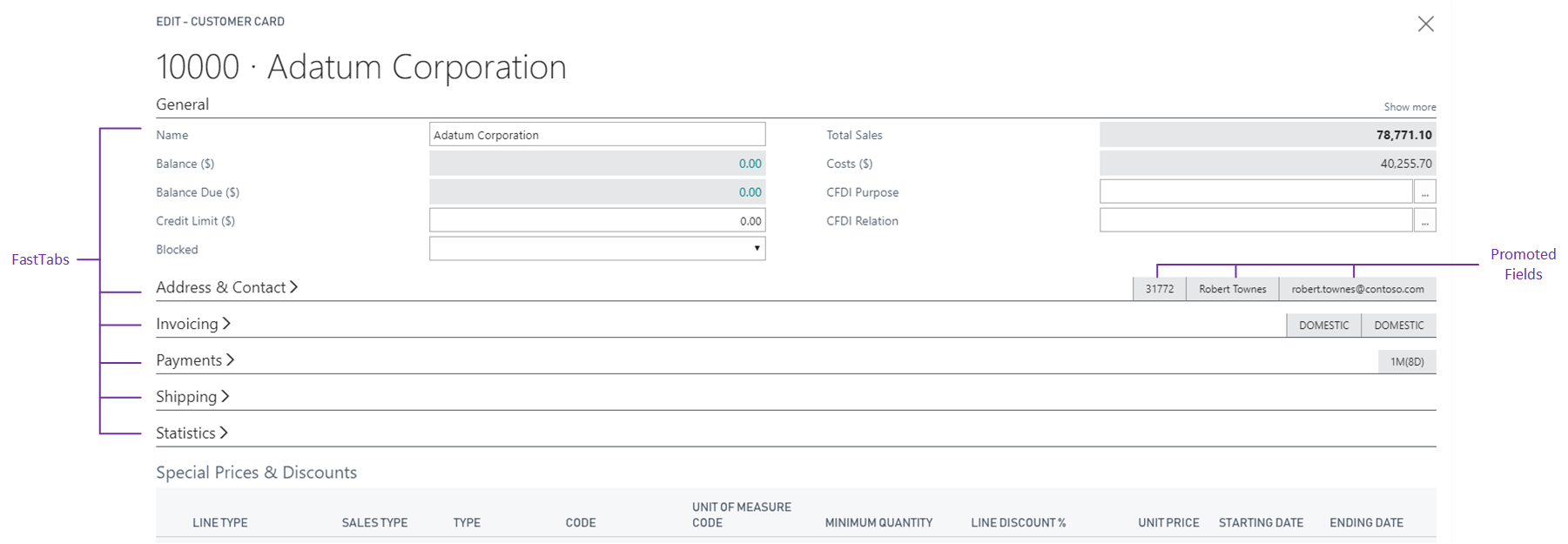
Pages adjust to the available screen space. A FastTab can use one column when space is limited and two columns at wider sizes. In wide or maximized layouts on sufficiently large screens, it can use three columns.
FastTab example
A FastTab is a group control directly inside the content area of a card, document, or task page. The following example creates a FastTab with two customer fields.
page 50101 SimpleCustomerCard
{
    PageType = Card;
    SourceTable = Customer;

    layout
    {
        area(content)
        {
            group(GeneralFastTab)
            {
                Caption = 'General';

                field(Name; Rec.Name)
                {
                    ApplicationArea = All;
                    Caption = 'Name';
                    ToolTip = 'Specifies the customer name.';
                }
                field(Address; Rec.Address)
                {
                    ApplicationArea = All;
                    Caption = 'Address';
                    ToolTip = 'Specifies the customer address.';
                }
            }
        }
    }
}
Initial expanded or collapsed state
Business Central determines the initial expanded or collapsed state. When no saved user state exists, the first two collapsible sections are normally expanded and the others are collapsed. Saved user settings take precedence. Users can change the state in the client, but developers can't specify a FastTab's initial expanded state through an AL group property.
Choosing how to show fields in a FastTab
An expanded FastTab shows its visible fields. A collapsed FastTab shows a summary line with the group caption and promoted fields. Use the field's Importance property to promote key information to the summary or to show additional fields only when users select Show more. Learn more in Importance property.
Note
A group with no effective caption is used for structural layout. You can supply a caption with Caption or CaptionML. Captionless structural groups normally can't be collapsed. If they contain fields with Importance = Additional, users can reveal those fields with Show more.
Organizing compound content in a FastTab
Use nested groups to keep related fields together as the client distributes content across the available columns. Fields in a nested group aren't split individually between columns.
Page parts also participate in the layout. A FastTab with two ListParts can display lists side by side when enough width is available. Learn more about page parts in Designing page parts.
Manually arrange fields in columns
Grid and Fixed controls constrain field placement and don't provide the same automatic reflow as ordinary FastTabs. Test these layouts at the screen sizes your users need. Learn more in Arranging fields using grid and fixed controls.
Related information
Arranging fields using grid and fixed controls
Pages overview
Use Designer
Table in Business Central