Note
Access to this page requires authorization. You can try signing in or changing directories.
Access to this page requires authorization. You can try changing directories.
Note
This tutorial is part of a series. For the previous section, see: Real-Time Intelligence tutorial part 2: Get data in the Real-Time hub.
In this part of the tutorial, you set an Activator alert on your eventstream to receive a notification in Teams when the number of bikes falls below a certain threshold.
Set an alert on the eventstream
Here you configure the rules for the alert. Your starting point is the eventstream details page for the eventstream you created in the previous tutorial. To get there, follow one of these two paths:
From the left navigation bar, select Real-Time.
In the list of recent data streams, select the TutorialEventstream eventstream you created in the previous tutorial. The eventstream details page opens.
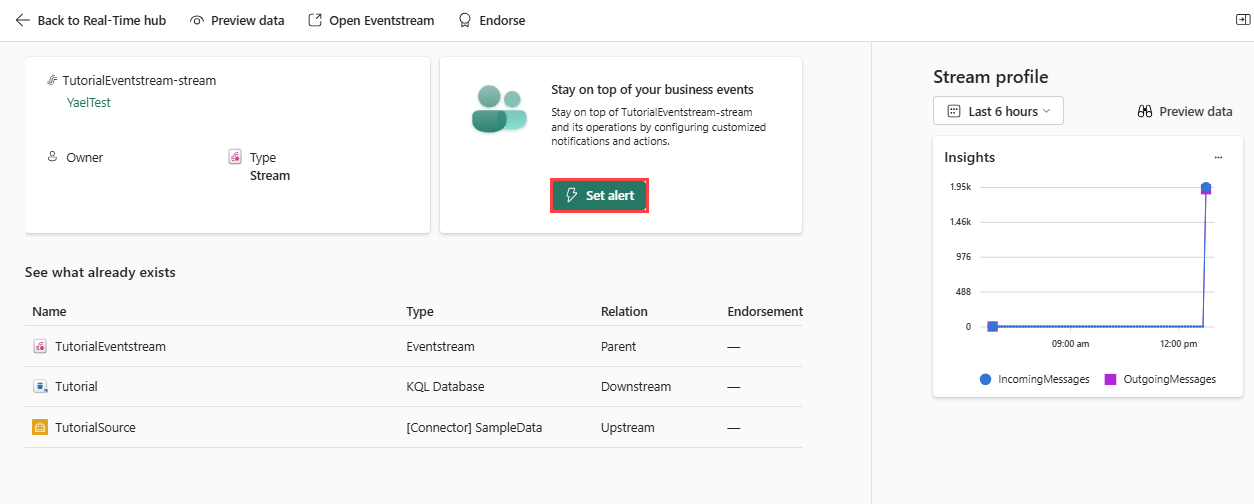
Select Set alert.
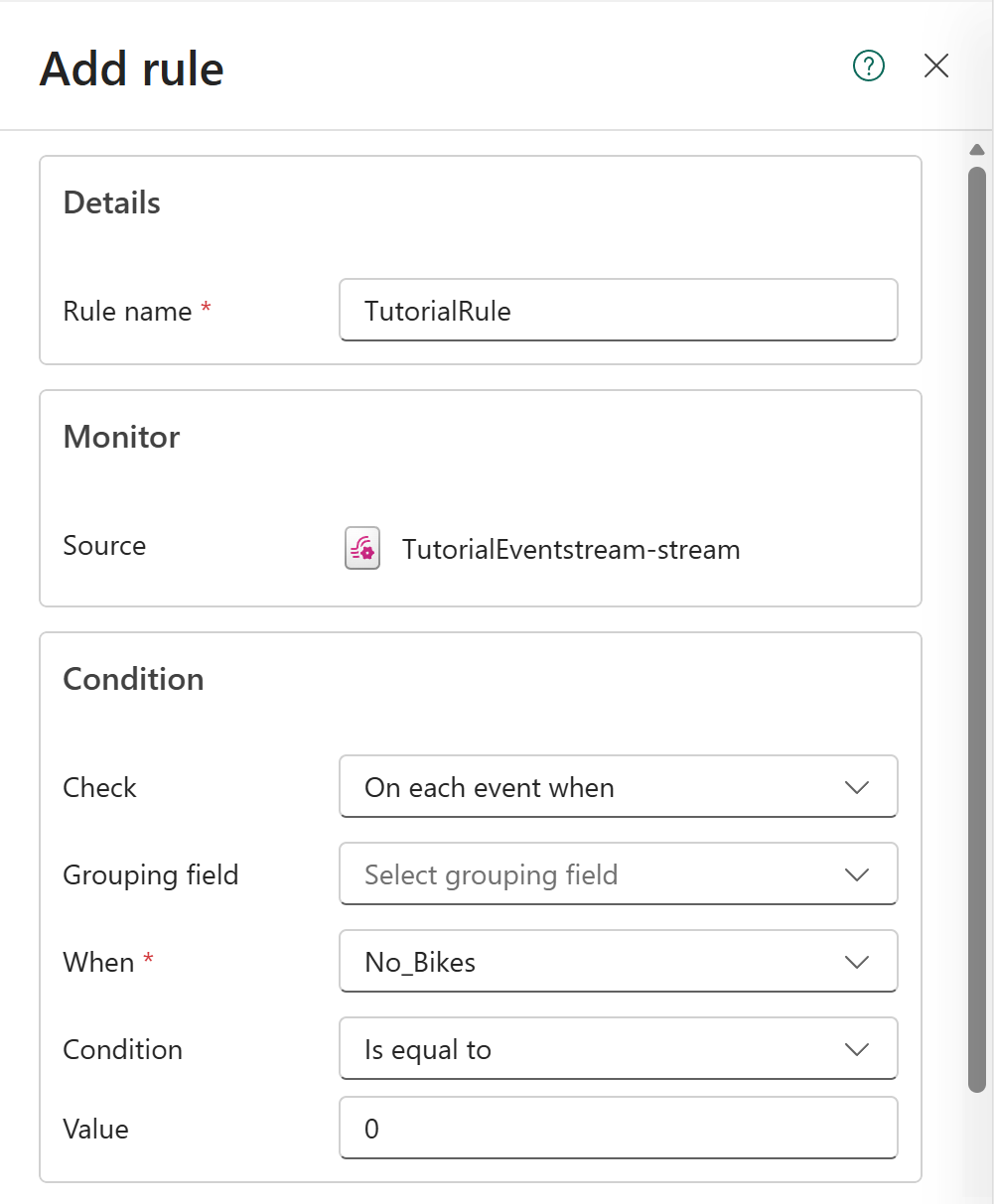
In the Add rule page, follow these steps:
In the Details section, for Rule name, enter TutorialRule.
In the Condition section, follow these steps to set the condition for the alert:
For Check, select On each event when.
For When, select No_Bikes.
For Condition, select Is equal to.
For Value, enter 0.

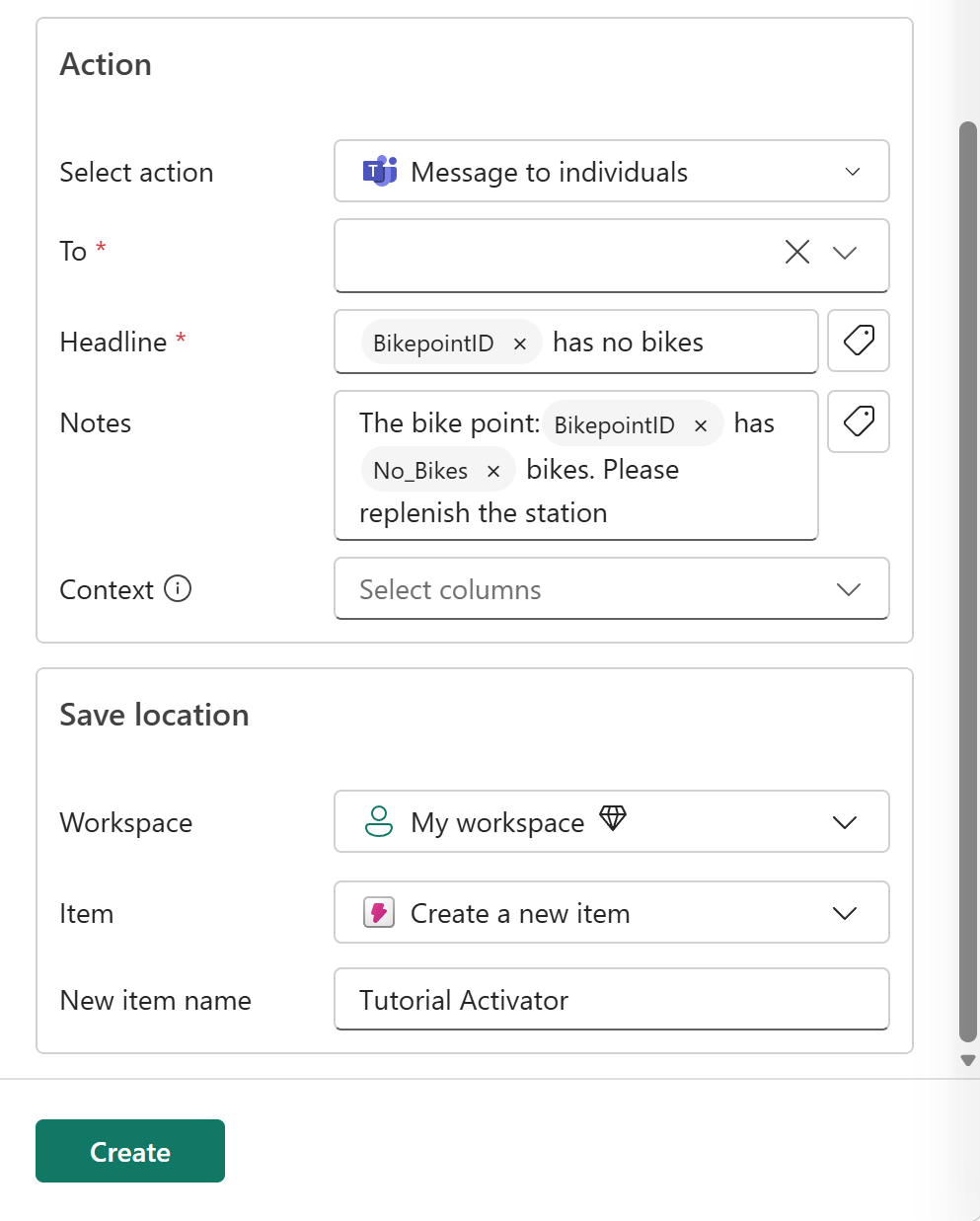
In the Action section, follow these steps to set the action for the alert:
For Select action, select Message to individuals.
For To, select your Teams account.
For Headline, enter @ or open the tag icon. In the list select BikepointID, and then type has no bikes. The resulting headline should be @BikepointID has no bikes.
For Notes, enter The bike point: @BikepointID has @No_Bikes bikes. Please replenish the station.
For Context, select No_Bikes.
In the Save location section, follow these steps to set where the alert will be saved:
For Workspace, select the workspace in which you created resources for this tutorial.
For Item, select Create a new item.
For New item name, enter TutorialActivator.
Select Create.
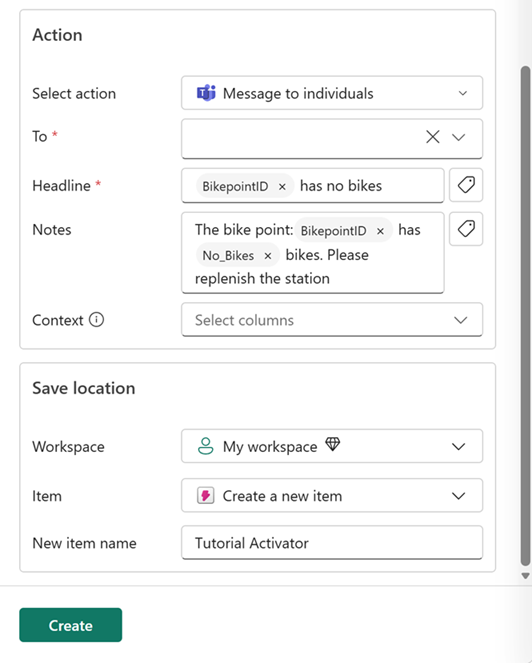
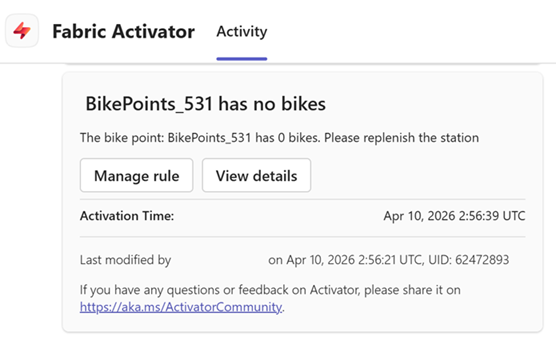
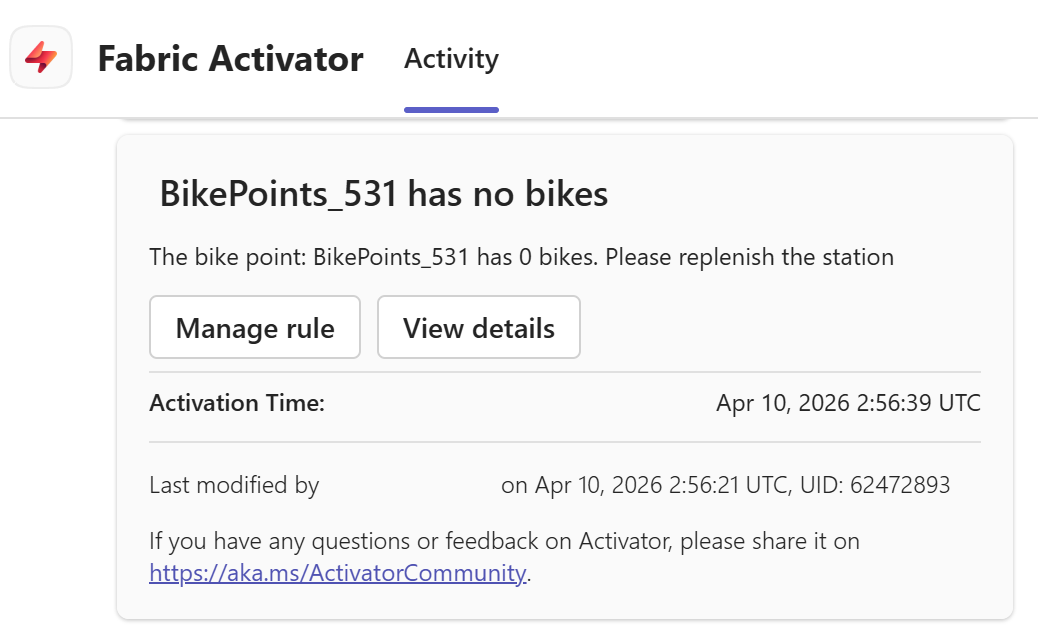
The alert is set and you receive a notification in Teams when the condition is met.
Open, view, and stop the Activator item
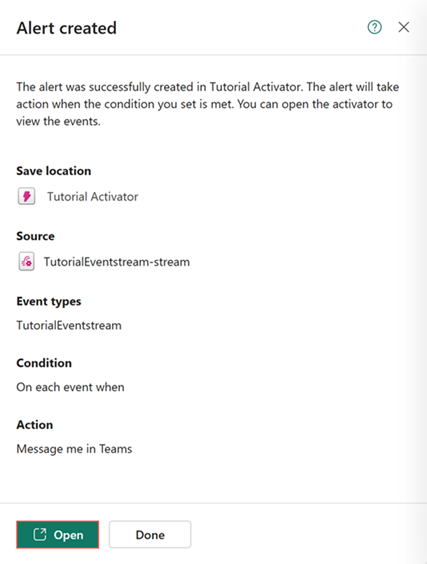
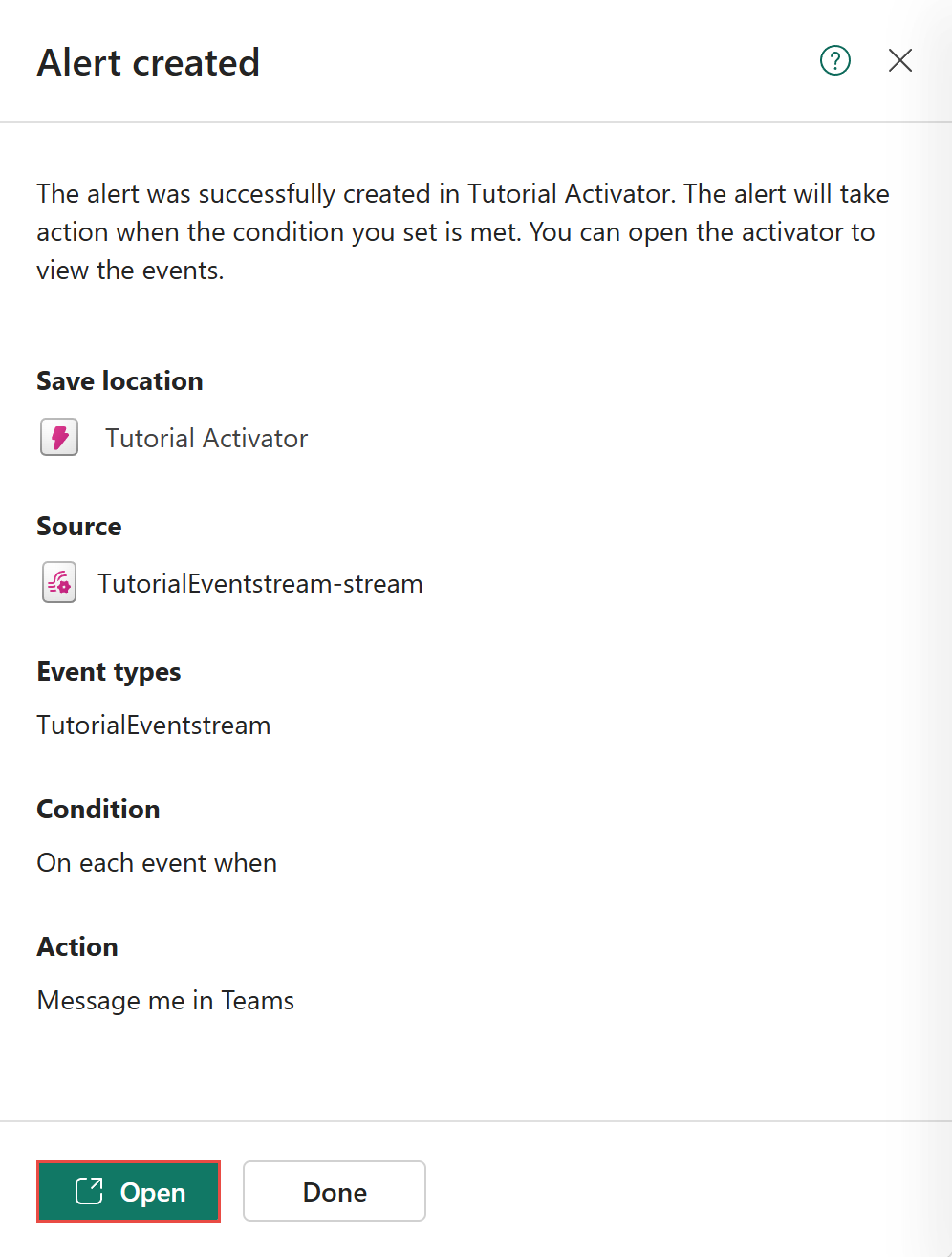
In the Alert created pane, select Open at the bottom of the pane. The Activator item you just created opens in a new tab.
If you closed the pane, you can also get to the Activator item from the left navigation bar, or by going to the workspace where you saved it and selecting it from the list of items.
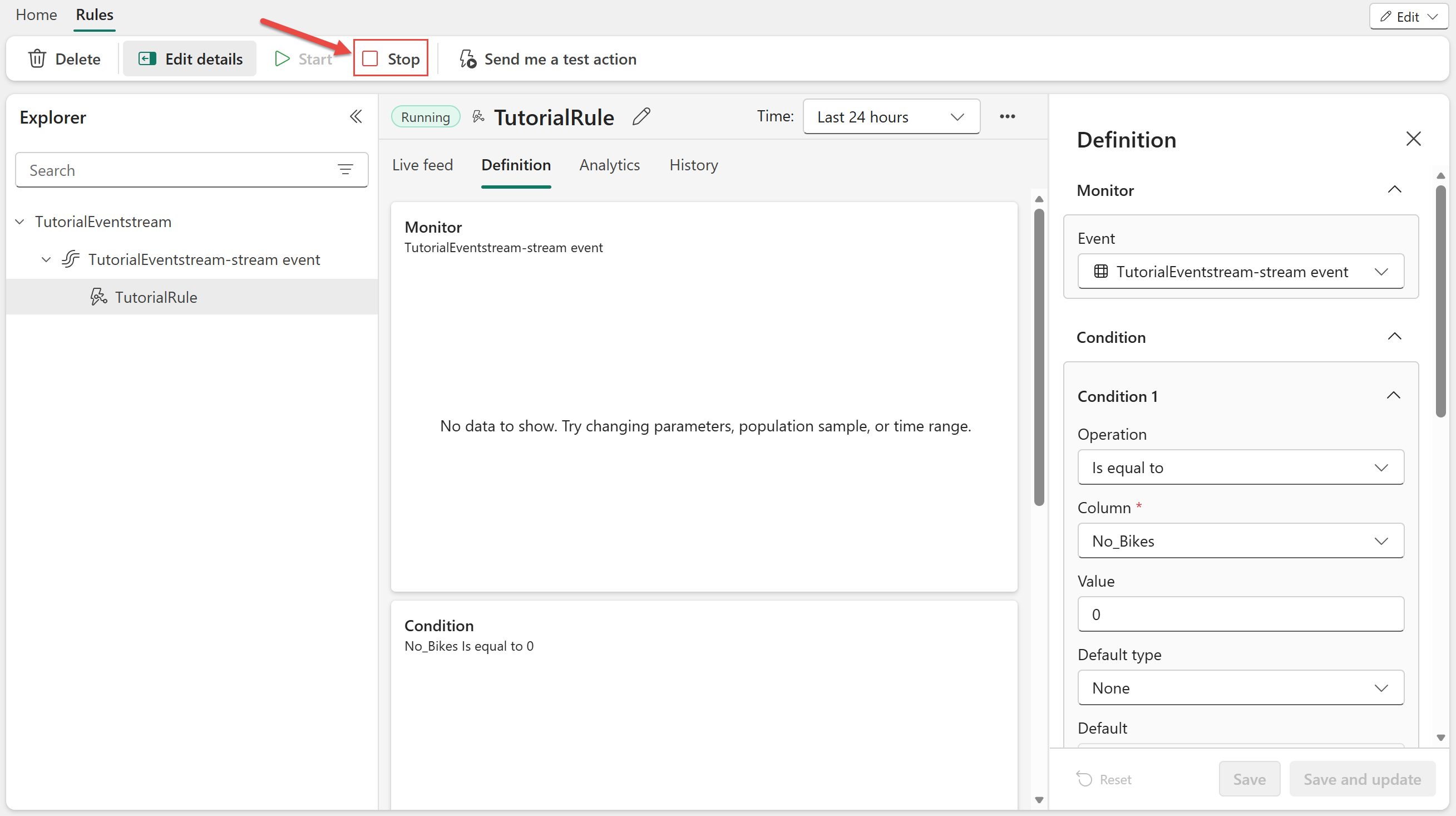
After you receive a few notifications in Teams, select Stop in the Activator item to stop the alert.
Related content
For more information about tasks performed in this tutorial, see: