Note
Access to this page requires authorization. You can try signing in or changing directories.
Access to this page requires authorization. You can try changing directories.
Use Dragon admin center to customize the Microsoft Dragon Copilot experience for physicians. Global administrators or Dragon administrators can use the Settings tab to configure Dragon Copilot for your entire organization, for specific organizational units, and for individual users.
Prerequisites
Purchase a license from either a Microsoft representative or your certified Microsoft partner. For more information, see: Licensing.
Assign the appropriate licenses and roles to your end users by using Microsoft 365 admin center. For more information, see: Get started with Dragon admin center.
Create an environment. For more information, see: Environments.
Provision an instance of Dragon Copilot (physicians). You can only create one instance of a Dragon Copilot capability per environment. For more information, see: Provision Dragon Copilot.
Create your organization hierarchy, manage your EHR instances and users (for Dragon Copilot embedded only), and create groups of users associated with your organizational units. For more information, see: Organization hierarchy.
To configure Dragon Copilot
- In the Dragon Copilot section of the navigation pane, select Physicians.
- Select Settings.
By default, you see the name of the top-level organizational unit in your organization hierarchy. Any changes you make to this top-level organization automatically populate to lower levels of the hierarchy.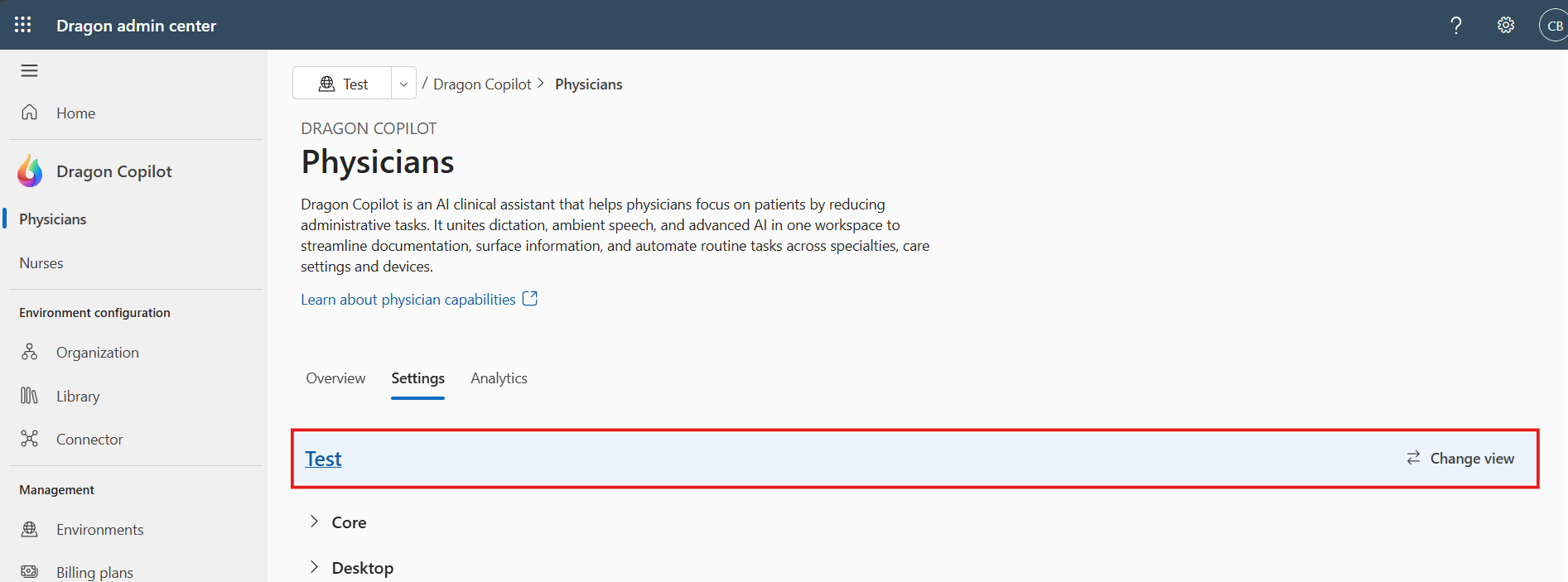
- To change the settings for a specific organizational unit or a specific user, select Change view and select the organizational unit or specific user.
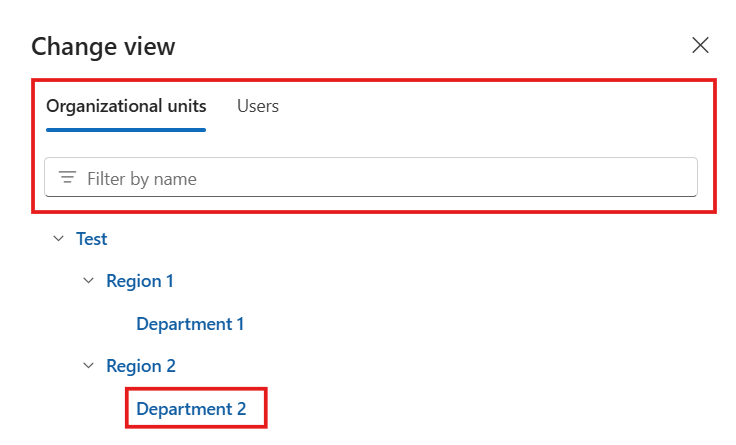
- When you finish updating settings, select Save settings.
- To reset back to the default settings, select Reset to default.
Inheritance and locking
The Source column shows you where each setting comes from; either the current user or organizational unit, or one of its parent units.
Organizational units inherit their settings from their parent units. This inheritance means that when you change a setting for a higher-level unit, the change cascades down to lower-level units.
Individual users get their settings from the units they're assigned to, either directly or through their groups.
By default, when you configure a setting directly for a unit or a user, it stops inheriting the setting from its parent groups. You can override this default behavior at the parent level by using the lock toggle switch:

When you lock a setting for a higher-level unit, it overwrites the setting for all child units and their users. The setting is no longer configurable for child units and users.
For example: You configure the Dictation clipboard to be displayed for an organizational unit, and all users within this unit will see the dictation clipboard. If the setting is locked, you can't make any changes at the user level or lower levels of the hierarchy for this setting. If the setting isn't locked, you can hide the dictation clipboard for individual users, or at lower levels of the hierarchy.
How Dragon admin center resolves conflicting settings
Each organizational unit can be configured with different settings. A user can be assigned to multiple organizational units, directly and through groups, which means that the user's settings from their assignments can potentially conflict with one another.
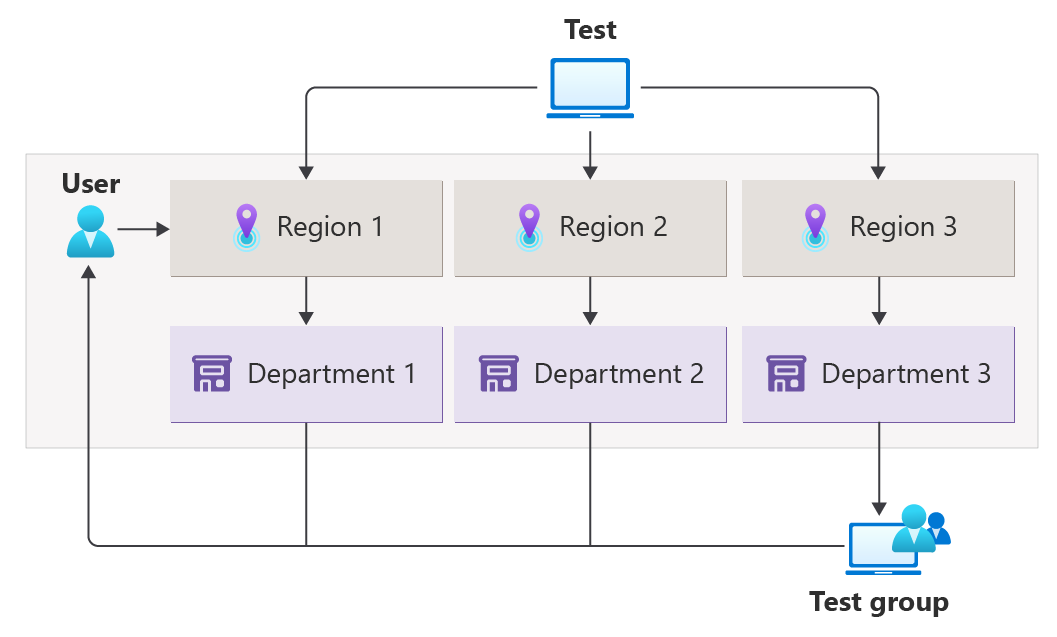
In this example, the user is directly assigned to Region 1, Department 1, and Department 2. The user is indirectly assigned to Department 3 through membership in 'Test group'. The user's Dragon Copilot configuration is based on settings defined for Test, Region 1, Region 2, Region 3, Department 1, Department 2, and Department 3. If some of those settings from different organizational units contradict each other, Dragon admin center resolves the conflict as follows:
Dragon admin center prioritizes settings from organizational units lower in the hierarchy. Department 1, Department 2, and Department 3 have priority over Region 1.
When organizational units are at the same level, direct assignments have priority over indirect assignments through group membership. The user is directly assigned to Department 1 and Department 2, and indirectly assigned to Department 3, so Department 1 and Department 2 have priority over Department 3.
If organizational units are still tied, alphanumeric order determines priority. Department 1 has priority over Department 2.
Settings applied to the user account have priority over settings applied to organizational units.
List of settings
Note
Availability of Dragon Copilot settings might vary depending on your region, license type, and other deployment factors. Some settings might not be available in your current configuration.
Core settings
| Setting | Description |
|---|---|
| Session list | Displays the session list. This setting only applies to the standalone Dragon Copilot app. |
| Dictation clipboard | Displays the dictation clipboard at the top of the session list. |
| Timeline | Displays the Timeline tab. |
| Note | Displays the Note tab. |
| Orders | Displays the Orders tab, which lists orders based on the recording. |
| Memos | Displays the Memos tab. |
| Retrieve patient list | Retrieves the patient list from the integrated EHR. The Sync patient schedule checkbox enables the user to sync and view their patient schedule in the app, via the General settings. |
Desktop settings
These settings only apply to the Dragon Copilot standalone desktop app for physicians.
| Setting | Description |
|---|---|
| Basic text control (user's preference) | Enables the user to switch basic text control on or off. When users dictate into an unsupported text control with Basic text control switched on, the recognition results are inserted as plain text. |
| Enable embedded field navigation | Enables the user to navigate between embedded text fields by using voice commands, keyboard shortcuts, and microphone buttons. |
| Stay signed in | Enables the user to stay signed in to Dragon Copilot over multiple sessions. |
| User workflows | Enables the user to create and manage custom workflows triggered by a voice command. |
| Speech anchoring | Enables users to anchor the cursor to where they want dictation text to go, while navigating through other apps. |
| Anchor speech focus automatically | Automatically anchors the speech focus to the active text field or input area. |
Embedded settings
These settings only apply to the Dragon Copilot embedded experience for physicians.
| Setting | Description |
|---|---|
| Join drop-in support | Allows users to join drop-in support sessions where they can connect with a live consultant for assistance. |
| Popup window | In EHRs with restricted recording capabilities, Dragon Copilot opens in a popup window. The user can record normally by using the popup window. |
| Send recordings to web and desktop apps | Makes sessions started in the EHR available in the Dragon Copilot standalone app. |
| Enable Dragon webview for iOS | Enables users working in their EHR on iOS to launch Dragon Copilot in webview mode, supporting ambient recording and SMART on FHIR integration. |
Dictation settings
| Setting | Description |
|---|---|
| Dictation microphone | Enables the dictation microphone. |
| Dictation formatting | Enables the user to apply their own formatting settings to dictated text. |
| Preferred mic (embedded) | Sets the preferred microphone for Dragon Copilot embedded in your EHR. This setting can only be configured at the user level. |
| Preferred mic (desktop) | Sets the preferred microphone for the Dragon Copilot desktop app. This setting can only be configured at the user level. |
| Preferred mic (web) | Sets the preferred microphone for the Dragon Copilot web app. This setting can only be configured at the user level. |
| Record Transcribe Enter/select Custom right/function D Tab backward Tab forward Rewind Fast forward Stop/play Function A Custom left/function B Function C |
Microphone button names for devices such as PowerMic. Indicates the configured microphone button action. Select an action for the corresponding button. |
| Mobile mic | Enables the mobile mic feature and adds the mobile mic to the list of available devices in the Microphone settings. |
| Block domains for dictation | Defines website domains where dictation is blocked and enables users to define additional blocked domains in the Dragon Copilot settings. |
| User texts | Displays the library and enables users to create and manage standard blocks of text. |
| Insert additional texts | Enables users to insert read-only texts such as disclaimers or signatures in the standalone app. To enable this setting, one of the following settings must also be enabled: User texts, Customizable templates, User customizable templates. |
| User vocabulary | Displays the library and enables users to create and manage words and phrases that are frequently used during dictation. |
Ambient settings
| Setting | Description |
|---|---|
| Ambient microphone | Enables the ambient microphone. The Ambient microphone hotkeys checkbox allows the user to assign a keyboard shortcut to the ambient microphone. |
| Ambient transcript | Enables the Transcript tab. |
Generative AI settings
| Setting | Description |
|---|---|
| Generative AI | Enables AI capabilities and style features. This switch enables or disables all the other settings in this section. |
| Product prompts | Enables prompts and AI actions. When you enable this setting, you can use the AI prompts drop down box to enable or disable the prompts individually. The following prompts are available: Apply my note style Applies the user's defined style preferences. Change pronouns to Changes the patient's pronouns throughout the note. Draft after-visit summary Generates a patient-friendly summary with details on the visit, education, and instructions. Get coaching Provides the user with helpful feedback after reviewing the transcript and note to improve the quality of generated AI artifacts and answers or results. Summarize evidence Provides detailed insights into the diagnoses in the Assessment and Plan section, with references to evidence in the transcript and draft note. Summarize note Summarizes the session and provides key takeaways. |
| Freeform text (NLI) | Enables a freeform text field at the bottom of the session workspace, allowing the user to interact with Copilot. |
| Style | Enables the Note style & format settings in Dragon Copilot. Users can configure their own styles for their clinical notes. |
| Customizable templates | Enables customizable templates in the style settings and library. |
| User prompts | Users can create and manage their own prompts in the library. |
| Create intent | Enables the create intent, which helps users create a wide range of content including letters, patient instructions, work or school notes, after visit summaries, and more. |
| Enable Information Assist | Enables Information Assist, which gives access to vetted and verified medical knowledge sources. |
| Information Assist user setting | Enables the user to switch Information Assist on or off in the Extensions settings. |
| Information Assist sources | Displays the information sources the user enables in their Information Assist settings. |
| Custom prompts | In the Note style & format settings, users can select a prompt that runs after their note is generated. |
| Transcript-aware customizable templates | Customizable templates also use the transcript to generate the output. |
| User customizable templates | Enables users to associate multiple customizable templates with a single note section, so they can select the most appropriate one based on the context of the encounter. |
| Multi-intent prompts | Enables users to create prompts that have multiple intents. This means the prompt can trigger a sequence of actions rather than just one. |
| Documents | Enables the Documents section in the Dragon Copilot library where users can select predefined documentation outputs to be automatically generated after each ambient recording. Users can then review the generated documents on the Documents tab in Dragon Copilot. |
| Product documents | Enables documents provided out of the box. When this is enabled, use the drop down box to enable/disable the Letter types individually. The following Letter types are available: Consultation summary letter or Letter to GP A letter addressed to the patient's general practitioner that is written in a formal tone, using medical language. Letter to patient A letter addressed to the patient written in a less formal tone, using patient-appropriate language. At the end of the document, a glossary explaining relevant medical terms is added. Referral letter A letter addressed to the specialist or service that the patient is being referred to. This letter is written in a formal tone, using medical language. |
Language settings
| Setting | Description |
|---|---|
| Recording languages | Toggle: Switch the recording language. Menu: Define which recording languages are available for users to select as the ambient recording language in the app. |
| Note languages | The languages available for text output. This setting can't be changed. |
| App languages | The languages available for the user interface. This setting can't be changed. |
| Default recording language | Sets the default recording language. This must be the same as the default note and app languages. |
| Default note language | Sets the default text output language. This must be the same as the default recording and app languages. |
| Default app language | Sets the default user interface language. This must be the same as the default recording and note languages. |
Recording language - multilingual
Dragon Copilot supports more than 50 recording languages. If you select Multilingual as the recording language, the user interface language isn't changed, the AI-generated transcripts are written in the spoken language (the output is in one paragraph and speakers are not identified), and notes are written in the user interface language. The accuracy of transcripts and notes varies by the language the user is speaking and all output must be reviewed.
Select to see a list of supported languages
| Afrikaans | Arabic | Armenian | Azerbaijani | Bangla (Bangladesh) | Bengali (India) | Bosnian | Bulgarian | Catalan | Chinese Mandarin | Chinese Cantonese | Croatian | Czech | Danish | Dutch | English | Estonian | Filipino (Tagalog) | Finnish | French | Galician | German | Greek | Hebrew | Hindi | Hungarian | Icelandic | Indonesian | Italian | Japanese | Kannada | Kazakh | Korean | Latvian | Lithuanian | Macedonian | Malay | Marathi | Nepali | Norwegian | Persian | Polish | Portuguese | Punjabi | Romanian | Russian | Serbian | Slovak | Slovenian | Spanish | Swahili | Swedish | Tamil | Thai | Turkish | Ukrainian | Urdu | Vietnamese | Welsh |
Keyboard shortcuts settings
| Setting | Description |
|---|---|
| Keyboard shortcuts | Defines keyboard shortcuts for common actions: Ambient microphone start/stop Dictation microphone start/stop Cancel requests Go to prompt field Go to next field Go to previous field Split view New session These settings only apply to the Dragon Copilot standalone desktop app for physicians: Maximize app Minimize app Anchor/release speech focus |
Notifications settings
| Setting | Description |
|---|---|
| Setup complete | Enables the first run experience. |
| Replay tour | Enables the onboarding tour in the first run experience. |
| Stand-by timeout (minutes) | Sets the number of minutes before Dragon Copilot enters stand-by mode due to inactivity. |
| Session timeout (minutes) | Sets the number of minutes before a Dragon Copilot session times out due to inactivity. |
| Session timeout warning (minutes) | Sets the number of minutes to display a warning before the session times out due to inactivity. |
| Display survey | Displays the survey to users after they have created the number of sessions configured in the Session count. Enter a number between 10 and 40 in the Session count. |
| Don't show survey | Reflects the user's choice to opt out of being presented with the survey. |
| Surveys completed by user | Displays the list of surveys completed by the user. |
User preferences settings
These settings only apply to the Dragon Copilot standalone app. They can only be configured at the user level.
| Setting | Description |
|---|---|
| Transfer headings | Enables the Transfer headings option in the Sections settings. |
| Enable text field delimiter editing | Enables the Text field delimiters settings; users can edit their own start and end delimiters, which indicate variable sections in their texts. For more information on text fields, see: Text fields |
| Start delimiter | Defines the left text field delimiter that the user recognizes when using commands such as next field, next section, field complete, or accept defaults. Delimiters are used in the creation of library texts. For example, Patient is an (age) year old (gender) who presents today for (problem). |
| End delimiter | Defines the right text field delimiter that the user recognizes when using commands such as next field, next section, field complete, or accept defaults. Delimiters are used in the creation of library texts. For example, Patient is an (age) year old (gender) who presents today for (problem). |
| Keep screen on while recording (mobile only) | Keeps the mobile device screen active while the Dragon Copilot mobile app is recording. |
| Mobile mic - accept defaults | Enables the user to accept the system generated default option using a mobile mic button. |
| Mobile mic - library | Enables the user to open the library menu using a mobile mic button. |
| Mobile mic - speech anchoring | Enables the user to anchor the speech focus using a mobile mic button. |
| Mobile mic - transfer | Enables the user to transfer text to another device using a mobile mic button. |
| Theme (embedded) | The display theme set by the user for the Dragon Copilot embedded app: Light has a bright background; Dark has a darker, low-light-friendly look. |
| Theme (web) | The display theme set by the user for the Dragon Copilot web app: Light has a bright background; Dark has a darker, low-light-friendly look. |
| Theme (mobile) | The display theme set by the user for the Dragon Copilot mobile app: Light has a bright background; Dark has a darker, low-light-friendly look. |
| Theme (desktop) | The display theme set by the user for the Dragon Copilot desktop app: Light has a bright background; Dark has a darker, low-light-friendly look. |
| User-blocked domains for dictation | The list of website domains where the user has blocked dictation. |