Note
Access to this page requires authorization. You can try signing in or changing directories.
Access to this page requires authorization. You can try changing directories.
Write a custom prompt to specify which columns should be included in a Copilot‑generated row summary. These summaries appear in a consistent, dedicated experience, either surfaced in a collapsible summary bar at the top of a main form or accessed directly for individual rows from views, giving users quick access to the most important information for a record.
Records are often comprised of dozens of fields spread across multiple tables, views, forms, tabs, and sections, making it time‑consuming for users to locate and understand the information that matters most. By highlighting key fields and insights in an at‑a‑glance summary, makers can help users quickly orient themselves, regardless of where they encounter the record.

Prerequisite for configuring a row summary
To enable and use this feature, a Power Platform administrator must enable Row summaries for the environment in Copilot > Settings > Power Apps > Summary in the Power Platform admin center. This setting controls summaries on both main forms and view pages. For more information, see Admin control.
Note
The same control is currently also available as AI insight cards in the environment feature settings. Use the Copilot settings experience as the preferred location. The AI insight cards location will be removed in a future release.
Create a row summary
Row summaries can be configured for most tables and appear on main forms and views.
Note
- When you configure the row summary, it applies to all views and main forms for the table.
- Some Dynamics 365 apps tables, such as Case, Lead, and Opportunity, provide their own summaries via the Dynamics 365 Customer Service and Dynamics 365 Sales applications. To avoid conflicts, the row summary feature isn't available for these tables. You can find more information about the summaries for these tables and the options for configuring or disabling these summaries by reading about the Customer Service summary and Sales summary features. These out-of-the-box summaries are currently only accessible from main forms (not views).
- Sign in to Power Apps (make.powerapps.com) select Tables on the left navigation pane, and then open the table where you want to configure a row summary. If the item isn’t in the side panel pane, select …More and then select the item you want.
- Under Customizations, select Row summary.
- If Row summary is disabled, hover over the words to find out the reason. For example, the table must have at least one row of data for the summary option to be enabled.
- In the Prompt box, add the columns that you want included in the summary by selecting Add or by typing /. You can also specify formatting for the summary, such as make it a bulleted list or a paragraph, as well as how to ensure the summary is generated in the user's preferred language. More information: Write a good prompt for the row summary
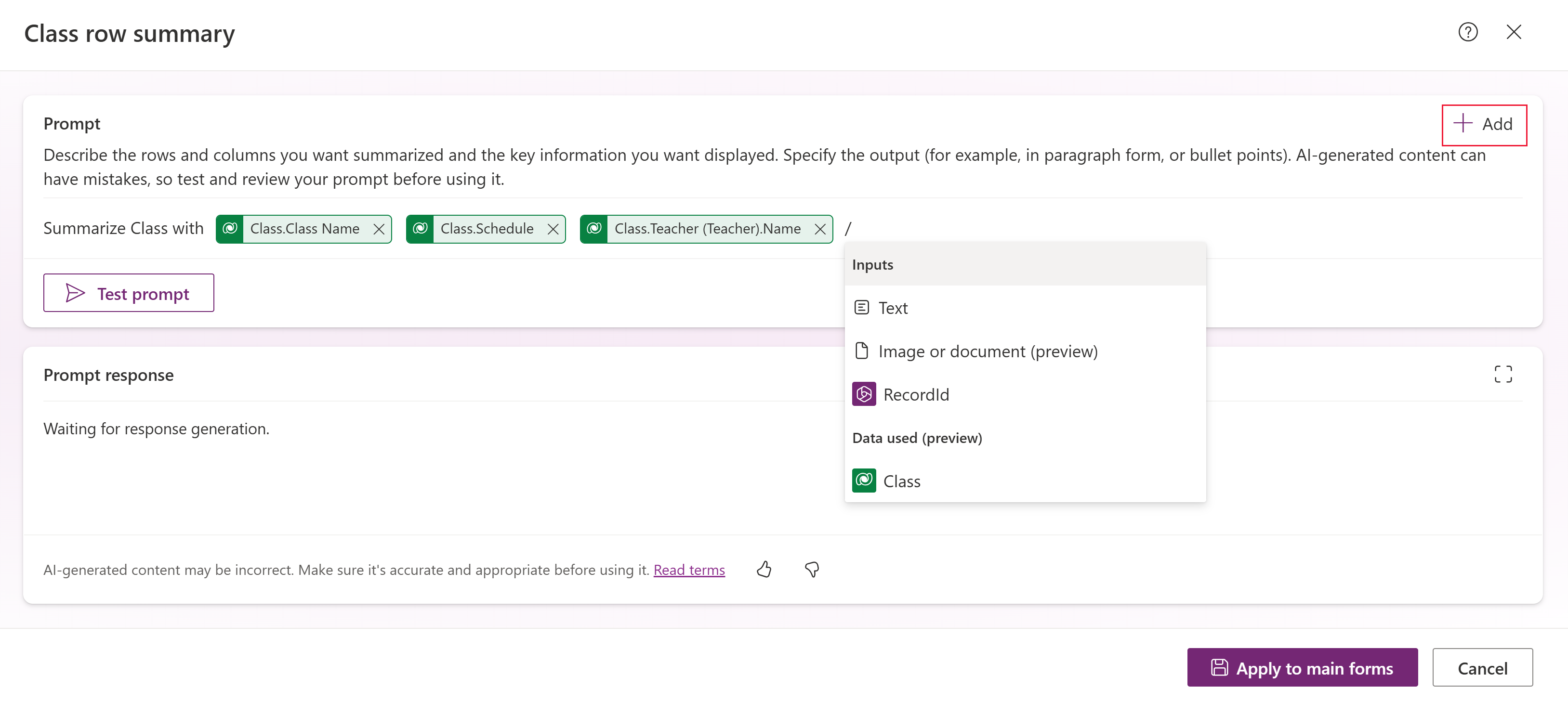
- Select Test prompt to display a preview of the summary. The most recently edited row in the table is used to generate a test response.
- Once you're satisfied with the columns and response from the test, select Apply to main forms. Although the button is labeled Apply to main forms, the row summary is applied to all main forms and views for the table.
Important
Any user who needs to view summaries configured through the Dynamics 365 Customer Service app must be assigned the prvReadLanguageLocale privilege through a security role.
Write a good prompt for the row summary
Writing a custom prompt gives you the ability to instruct the AI model to perform a specific task. By carefully crafting a prompt, you can generate a response that suits your specific business need. Here are some tips to consider when writing a prompt:
- Provide a list of the columns you want to include in the summary. Alternatively, you might wish to provide a list of columns that you want to exclude from the summary.
- Specify any formatting preferences, such as write the summary as a bulleted list.
- Include the appropriate input and instruction if your users work in multiple languages and you want the summary to respect the user's preferred language; otherwise, the summary will be generated in the language of the summary prompt itself, regardless of the user's language settings. To configure:
- Include the LanguageCode input in the prompt.
- Add the instruction to the prompt: "You must respond in language <LanguageCode>."
- If Copilot doesn't support the user's language, the summary is generated in English.
- This language instruction is added by default for newly configured summaries, but must be manually added for any pre-existing summaries that were created before this behavior was introduced.
- For information about how to craft effective prompts, download the AI Builder prompt engineering guide.
Prompt example for a row summary
Here are examples to use when building a row summary prompt.
Summarize Account record in a way that is easy to understand for a sales manager. Make sure to include all important information, including main ideas and important details, while keeping the order of the content logical. Remove any repetitive elements to make the summary as concise as possible without losing the original text's integrity. If the original text is too short to condense, present it as the summary.
Don't include the title in the summary. Create the summary in two paragraphs. For the first paragraph, use the instructions under the header Data. For the second paragraph, use the data under the header Activity. Leave a blank line between the two paragraphs. Don't include the titles Data & Activity in the paragraphs.
Data:
Show the below values as bullet points using markdown text and bold the values. Make the primary contact a navigation link to the contact record. The link must not include query string parameters in it.
Account.Annual Revenue, Account.Category, Account.Industry, Account.Ownership
Activity:
Generate a summary paragraph using the following customer communication fields identifying top 2 key information and top 2 important actions to take.
Account.Regarding (Phone Call).Subject, Account.Regarding (Email).Subject
You must respond in language LanguageCode
Edit a row summary
To edit a row summary, open the table, and then under Customizations select Row summary (applied). Follow the steps similar in Create a row summary to make and apply changes.
Show or hide a row summary
- In Power Apps, select Tables on the left navigation pane, and open the table with the configured row summary.
- Under Customizations, select Row summary.
- In the prompt configuration screen, use the Show row summary toggle in the upper-right corner to show or hide the summary.
Turning off Show row summary hides the configured summary from all main forms and view pages for the table. The prompt configuration is retained so the summary can be shown again later.
Note
The Show row summary toggle affects only custom row summaries configured from this row summary experience. It doesn't hide summaries provided by Microsoft or summaries configured through another application or experience, such as Customer Service summaries for custom tables.
If you're trying to hide the default summary for case, lead, and opportunity, which are provided via the Dynamics 365 Customer Service and Dynamics 365 Sales applications, go to these articles to learn more about options for configuring and/or disabling these summaries:
- Case: Customer Service summary
- Lead and opportunity: Sales summary features.
Adding summaries to solutions
Row summaries are solution-aware and can be added to a solution to facilitate moving between environments. To add a summary to a solution, follow these steps:
- In Power Apps, select Solutions on the left navigation pane, and open the desired solution.
- Select Add existing > More > Other > AI Skill Config.
- Select the rows corresponding to the tables you created summaries for, and then select Add.
Important
Don't add AI Skill Config table rows with an owner of System to your solutions. These don't correspond to row summaries you have created and might cause solution import to fail.
Known limitations
Keep the following limitations in mind when you configure a row summary:
- Calculations. Row summary doesn't support calculations on column values, such as performing arithmetic on numeric values.
- Dates. Row summary isn't intended for date-based operations, such as calculating durations, comparing dates, or determining status from a date. Use business logic or calculated columns for those scenarios.
- Related-record links. Hyperlinks to related records might not render as expected in the summary.
- Formula and calculated columns. Values from these columns might not be reflected accurately.
- Metadata. Choice (option set) labels and related-table associations might not be interpreted as expected.
- Formatting. Rich formatting, citations, and footnotes aren't supported.