The Plan phase
In this initial phase, your objective is to evaluate deployment readiness. You’ll do so by determining readiness and identifying gaps across your entire environment:
- Operations
- Applications
- Infrastructure
- Configurations
- Devices
- Users
Let’s look at each of these areas one by one, outlining the tasks and deliverables that will help you accomplish the objective of this phase. For each deliverable, consider a format that's easy to share with others and collaboratively edit throughout the life of the project.
Tip
In practice, these six areas often require simultaneous or overlapping attention.
Note
Our recommended way forward is cloud-native, with devices Microsoft Entra ID-joined and managed through Microsoft Intune. Cloud-native management can simplify planning, preparation, deployment, and ongoing management of Windows 11 using Microsoft Intune and Windows Autopatch. Many of these processes can also be adapted for hybrid or on-premises environments. Discover which option is right for your organization on Microsoft Learn.
Phased or ring-based approach to deploying Windows
Throughout this module, we’ll be referring to deployment rings and various project phases. It’s common for some of the terms to be used interchangeably. For the purposes of this module, we’re adopting the following terminology for different phases of a deployment project:
- Proof of Concept (PoC). This is an optional phase you’d often perform in a lab environment. It’s most helpful at the earliest stages of the project to test out basic functionality and assumptions. Sometimes, it’s also called a Limited Pilot.
- Pilot. This is the first phase you’d perform in the production environment. Use it to test out the wider infrastructure, connectivity, and application compatibility.
- Broad deployment. This represents one or more further deployment phases in the production environment, known as rings. In Windows Autopatch, these are referred to as first, fast, and broad rings, eventually targeting the majority of the estate.
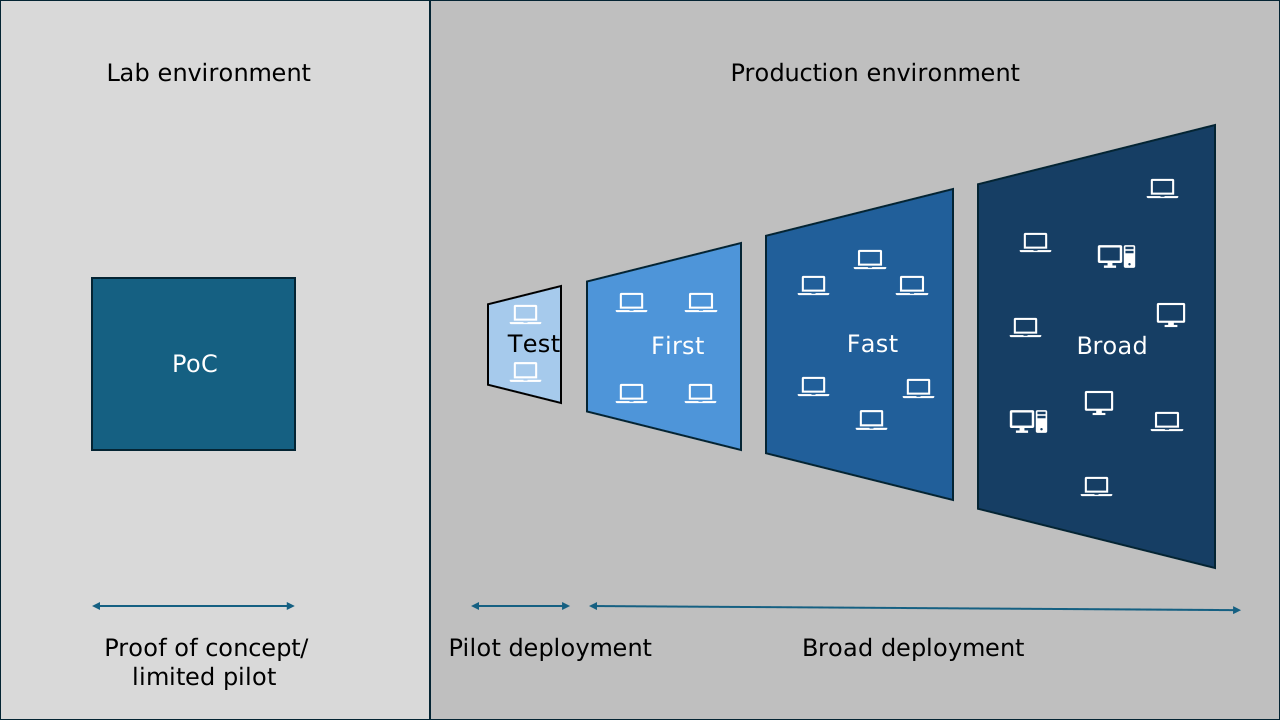
Helpful reports across the deployment phases
Windows diagnostic data provides the information for Windows update compatibility reports, so it’s not necessary to install agents. You can use Microsoft Intune or Microsoft Configuration Manager (as appropriate) to deploy diagnostic data settings to the clients you want to report on.
Suggested reports
| Area of use | Report name | Source | Phase |
|---|---|---|---|
| Device readiness | Windows feature update device readiness report | Microsoft Intune | Plan, Prepare |
| Device readiness | Windows feature update compatibility risks report | Microsoft Intune | Prepare |
| Device readiness | Work from anywhere report | Endpoint analytics | Plan |
| Device readiness | Feature updates – device status | Windows Update for Business reports | Plan |
| Application inventory | Discovered apps report | Microsoft Intune | Plan |
| Device provisioning | Work from anywhere report | Endpoint analytics | Plan |
| Device identity | Work from anywhere report | Endpoint analytics | Plan |
| Deployment status | Feature update status report | Windows Autopatch | Deploy |
| Deployment status | Feature update trending report | Windows Autopatch | Deploy |
| Deployment status | Management status report | Windows Autopatch | Deploy |
| Deployment status | Windows quality and feature update reports | Windows Autopatch | Deploy |
| Deployment status | Feature update failures report (Organizational) | Microsoft Intune | Deploy |
| Deployment status | Windows feature update (Organizational) | Microsoft Intune | Deploy |
| Deployment status | Windows feature update report | Microsoft Intune | Deploy |
| Deployment efficiency | Delivery Optimization report | Windows Update for Business reports | Deploy |
Prerequisites for report use
| Report source | Prerequisites |
|---|---|
| Microsoft Intune | • Microsoft Entra joined or Microsoft hybrid Entra joined devices • Devices managed by Microsoft Intune, by Configuration Manager with tenant attach enabled, or co-managed • Windows diagnostic data enabled (minimum level: Required) • Enabled diagnostic data in processor • A valid license: Windows 10/11 Enterprise (E3, E5), Windows 10/11 Education (A3, A5), Windows Virtual Desktop Access (E3, E5), or Microsoft 365 Business Premium • Devices running Windows 10, version 1903 or later Use Windows Update for Business reports for Windows Updates in Microsoft Intune |
| Endpoint analytics | Same prerequisites as Microsoft Intune (visit What is Endpoint analytics?) |
| Windows Update for Business reports (Azure workbook) | • Azure subscription with Microsoft Entra ID • Microsoft Entra joined or Microsoft hybrid Entra joined devices • Log Analytics workspace in a supported region • Devices running Windows 10/11 Professional, Education, or Enterprise edition • Windows diagnostic data enabled (minimum level: "Required") Prerequisites for Windows Update for Business reports - Windows Update for Business reports |
| Windows Autopatch | Same prerequisites as Microsoft Intune (visit Prerequisites) |
Important
You might need to modify your diagnostic data settings to get full use of the reports in this module.