Language
Note
Access to this page requires authorization. You can try signing in or changing directories.
Access to this page requires authorization. You can try changing directories.
Code snippets are small blocks of reusable code that you can add to a code file. Snippets usually contain frequently used constructs such as Try...Finally or If...Else blocks. You can also use snippets to add entire classes or methods.
A code snippet has a title that you use to select it and can have a shortcut that you type to insert it. Snippets can also contain replacement parameters, which act as placeholders. Visual Studio provides snippets for many languages, including C#, C++, and Visual Basic.
Prerequisites
- Visual Studio with support installed for the programming language that you want to use. The available snippets depend on the installed workloads and language components.
- A code file open in the editor and recognized by the appropriate language service. For the C++ example, open a
.cppor.hfile.
Understand snippet types
Visual Studio supports two types of code snippets:
- An expansion snippet adds code at a specified insertion point.
- A surround-with snippet adds code around selected code. Surround-with snippets are available only for C# and C++.
Find available snippets
To view the installed snippets for a language, select Tools > Code Snippets Manager or press Ctrl+K, Ctrl+B. In Code Snippets Manager, select a language from the Language list.
To create and import your own snippet so it appears in the snippet list, see Walkthrough: Create a code snippet in Visual Studio.
Note
Keyboard shortcuts can vary by settings profile, context, keyboard layout, and custom key bindings. To find the binding for a command, see Identify and customize keyboard shortcuts.
Insert an expansion snippet
An expansion snippet inserts code at the insertion point. For example, the C# tryf snippet adds a try/finally block:
try
{

}
finally
{

}
You must insert the tryf snippet where a statement is valid, such as inside a method, indexer, property accessor, or event accessor.
In the code editor, position your cursor where you want to add the snippet.
Take one of the following actions:
- On the menu bar, select Edit > IntelliSense > Insert Snippet.
- Right-click and select Snippet > Insert Snippet.
- Press Ctrl+K, Ctrl+X.
In the snippet picker, open the Visual C# folder, and then double-click tryf. You can also select tryf and press Tab or Enter.
The try/finally block appears at the insertion point, ready for you to customize.
Tip
At a valid insertion point, type tryf, and then press Tab twice to expand the snippet without opening the snippet picker.
Surround selected code with a snippet
A surround-with snippet wraps selected code. For example, the C++ if snippet wraps the selected line return FALSE; in an if block:
if (true)
{
    return FALSE;
}
To surround selected C++ code:
In a
.cppor.hfile, select the code that you want to wrap.Take one of the following actions:
- On the menu bar, select Edit > IntelliSense > Surround With.
- Right-click and select Surround With.
In the snippet picker, double-click if, or select if and press Tab or Enter.
The if block appears around the selected code. Replace the true placeholder with the condition that you want to evaluate.
For more C++ snippet examples, see Visual C++ code snippets.
Edit replacement fields
Snippets can contain replacement fields that you customize after insertion. When the same field appears more than once, changing one occurrence changes all linked occurrences. Press Tab to move to the next replacement field.
For example, the Visual Basic Define a Property snippet contains linked fields for the backing variable, property name, and property type. To insert it:
- In a Visual Basic code file, right-click where you want to insert the property, and then select Snippet > Insert Snippet.
- Select Code Patterns > Properties, Procedures, Events > Define a Property.
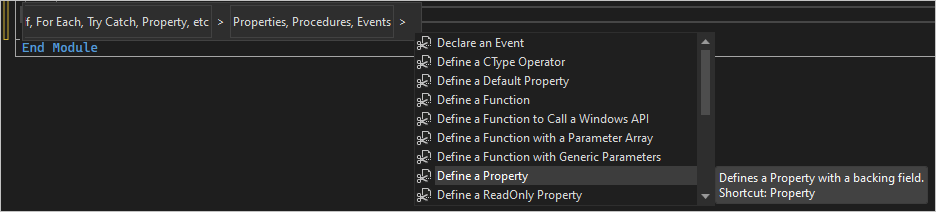
The following code is inserted:
Private newPropertyValue As String
Public Property NewProperty() As String
    Get
        Return newPropertyValue
    End Get
    Set(ByVal value As String)
        newPropertyValue = value
    End Set
End Property
If you change newPropertyValue to m_property, every linked instance of newPropertyValue changes. If you change the property type from String to Integer, every linked instance of String changes to Integer.
Troubleshoot code snippets
If a snippet or command isn't available:
- Confirm that Visual Studio recognizes the file as the expected programming language.
- Confirm that the required workload or language component is installed.
- In Tools > Code Snippets Manager, confirm that the snippet is installed for the selected language.
- If a keyboard shortcut doesn't work as expected, use Identify and customize keyboard shortcuts to look up the command's current binding.
- Check that the insertion point is valid for the selected snippet. For example, some C# snippets are valid only inside a method or type declaration. For valid C# insertion locations, see C# code snippets.
Review code inserted by snippets
Snippet code shows a basic way to perform a task. Review and adapt the generated code before you use it in an application. Consider how the code handles exceptions, accesses resources, validates input, and protects secrets.
Treat snippets downloaded from the internet like other downloaded code. Download snippets only from sources that you trust, and inspect the snippet code and metadata before you import or run it.
In .NET Framework projects, a snippet can use the References element to add project references. Review the Imports and References elements and verify that you trust the referenced assemblies. For more information, see Import a namespace and the code snippets schema reference.