Note
Access to this page requires authorization. You can try signing in or changing directories.
Access to this page requires authorization. You can try changing directories.
GitHub Copilot completions and GitHub Copilot Chat in Visual Studio enable enhanced AI-assisted development in Visual Studio, helping you be more productive and efficient when you write code.
In this article, you learn about using Copilot Chat in Visual Studio, a fully integrated AI-powered chat experience from GitHub Copilot within the Visual Studio IDE. With the extension, you get coding information and support, such as syntax, programming concepts, context-specific code help, test cases, debugging, and more, without leaving the IDE. Use the chat interface to submit your question as a prompt and set intent for better scoped answers.
Copilot Chat includes multiple interaction modes. Use Ask mode for questions and answers, and Agent mode for task-oriented, multi-step workflows. Starting in Visual Studio 2026 version 18.11, the new chat experience uses a shared Copilot SDK foundation also used by the Copilot CLI and GitHub Copilot app. For mode-specific guidance, see Ask mode and Agent mode.
For more information on the GitHub Copilot completions in Visual Studio, see About GitHub Copilot completions for Visual Studio.
Why use Copilot Chat in Visual Studio?
Copilot Chat provides AI assistance to help you make informed decisions and write better code. With tight integration in Visual Studio, Copilot Chat understands what you're working on and can help you with development tasks like:
- Code explanations. Get in-depth analysis and explanation of how a code block works.
- Code help. Get answers to programming-related questions in natural language or code snippet format.
- Code refinement. Get context-specific code suggestions and recommendations.
- Unit testing. Generate unit tests.
- Profiling. Optimize code performance.
- Debugging. Find issues and get proposed fixes to bugs and exceptions.
- Review and commit code. Generate commit messages and review local changes.
- Commit history context. Attach one or more commits directly from Git history to chat and ask Copilot to explain changes, spot issues, or propose similar edits. Learn more in Manage chat context with references.
- Branch context. Attach a Git branch directly from the Git Repository window using the Add to Chat action to bring the branch name and its associated changes into the conversation.
Prerequisites
- Visual Studio 2022 version 17.8 or later.
- Sign in to Visual Studio using a GitHub account with Copilot access. You can use GitHub Copilot for free.
Note
As of April 20, 2026, GitHub Copilot Pro trials have been paused. If on a trial, switch to Copilot Free or upgrade to a paid plan. For support, see https://docs.github.com/en/copilot/get-started/plans.
Get GitHub Copilot Chat for Visual Studio
If you use Visual Studio version 17.10 or later, GitHub Copilot Chat is included in the unified GitHub Copilot experience. The extension is available as a recommended component in the Visual Studio Installer. Copilot Chat is installed by default with all workloads, unless you choose to exclude it during installation.
GitHub Copilot isn't included in Visual Studio Subscriptions. Instead, it's a separate subscription managed by GitHub. For questions regarding GitHub Copilot subscriptions and support, see the GitHub pages for business subscriptions and individual subscriptions.
Enable the new Copilot chat experience
Starting in Visual Studio 2026 version 18.11, you can enable the new Copilot chat experience.
- Go to Tools > Options.
- Go to GitHub > Copilot > Copilot Chat.
- Select Use new Copilot chat experience.
- Restart Visual Studio for the change to take effect.
Use Copilot Chat in Visual Studio
You can ask your coding related questions in natural language. GitHub Copilot Chat answers these questions in your development context.
There are two places you can ask Copilot these questions: in a chat window, or with inline chat in the code that you want to modify. If your goal is to modify or add to the code file you have open in the editor, the inline chat view usually works best. For more general coding questions, the chat window is the better option.
In the chat window, select Ask to open the mode selector, and then choose Ask or Agent. For workflows and supported actions in Agent mode, see Get started with GitHub Copilot agent mode.
To get better answers with scoped context in Copilot Chat, see the tips to improve Copilot chat results. You can learn how to use slash commands, references, sources used, and threads.
To get better answers with scoped context in Copilot Chat, see the tips to improve Copilot chat results. You can learn how to use slash commands, references, sources used, and the chat history panel. You can also reference Git changes and commits in chat to summarize pending work, explain earlier edits, and review a specific commit with more context. You can also add a Git branch as chat context directly from the Git Repository window with the Add to Chat action.
Note
Content exclusion is available for GitHub Copilot Chat. Content excluded by your admin is ignored in responses from chat. For more information, see Configuring content exclusions for GitHub Copilot.
Ask questions in the chat window
Ask your questions and see answers in the chat window. We recommend this tool for programming help and general coding questions.
- In Visual Studio, select View > GitHub Copilot Chat.
- In the chat window, type a coding related question in the Ask Copilot text box. Select Enter or select Send to ask your question.

To resume earlier conversations, use the chat history panel. Each entry includes the chat title, a preview of the last message, and when the session was last updated.
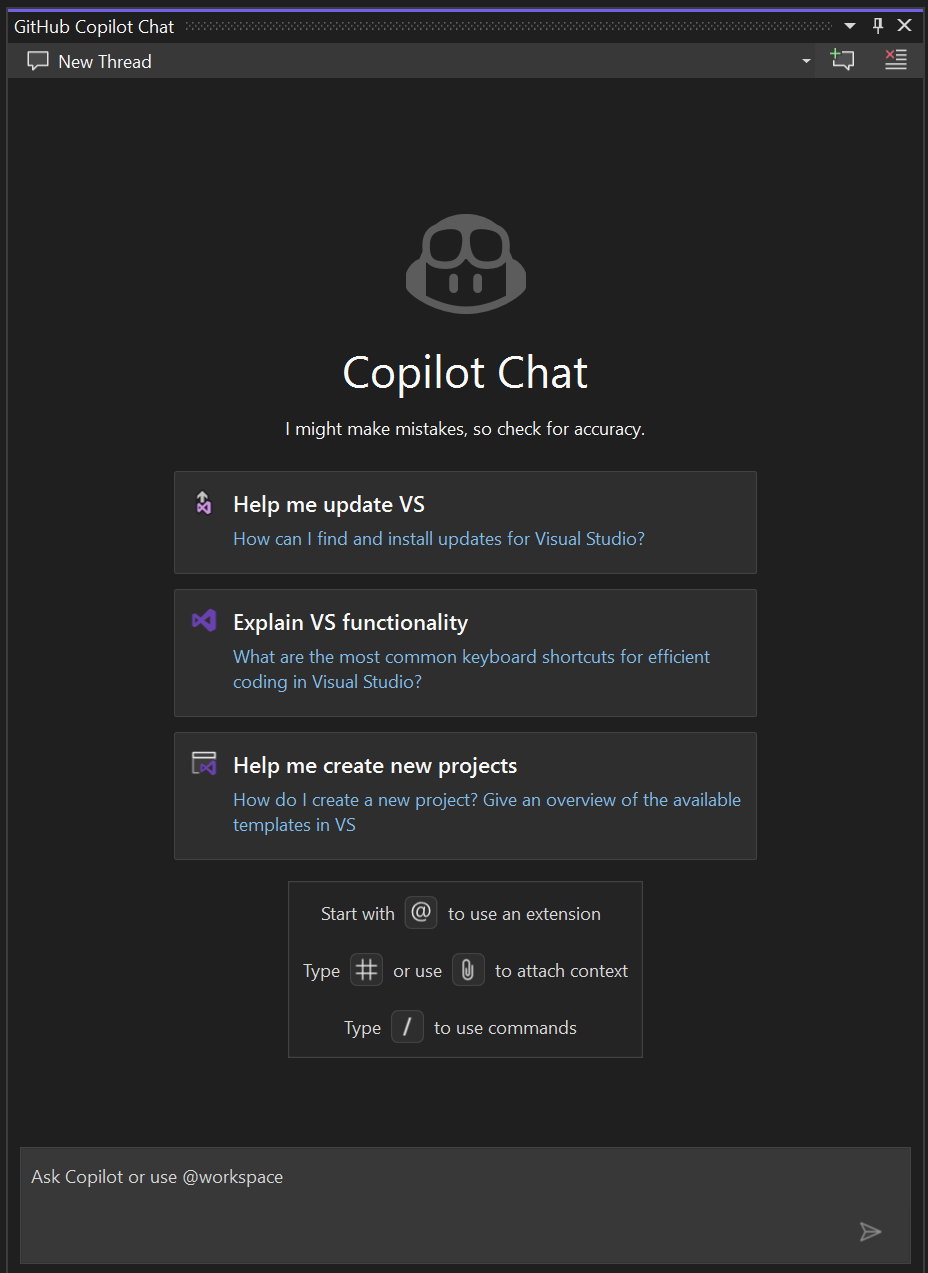
To start exploring GitHub Copilot Chat, use the example starter prompts and the prompt library (book icon) in Visual Studio 2022 version 17.12 and later.
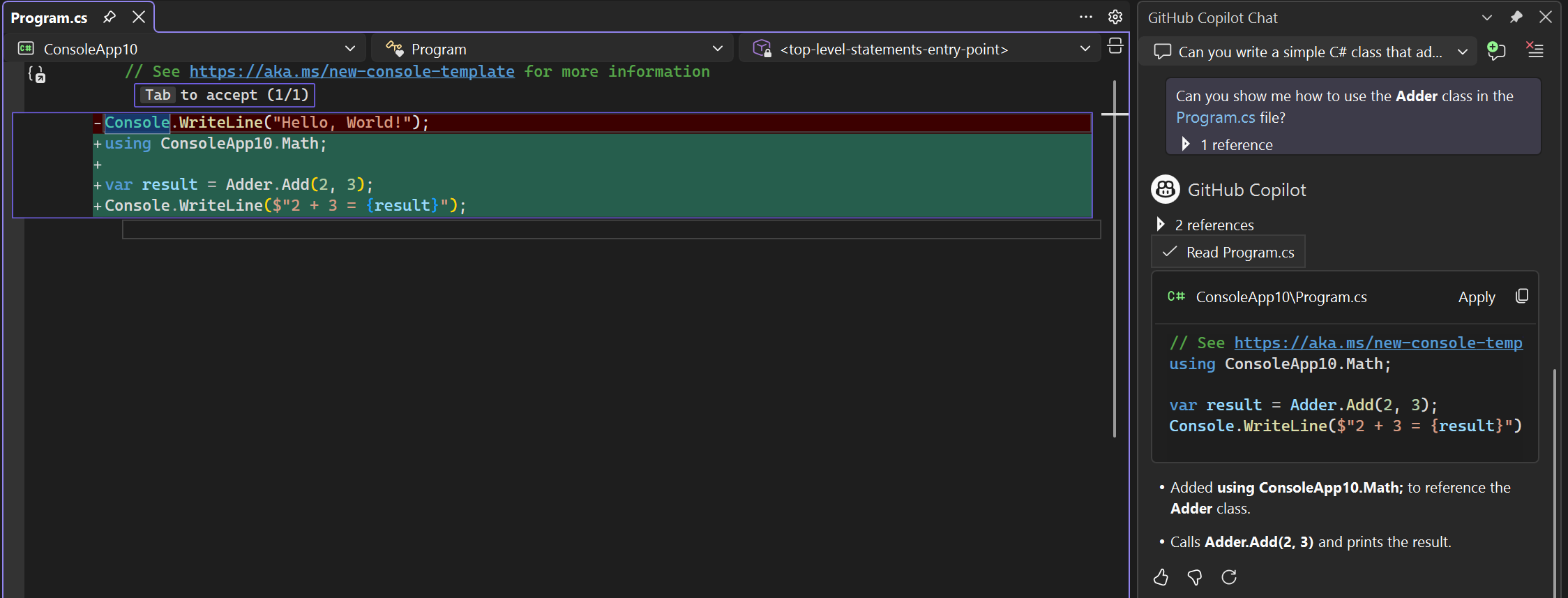
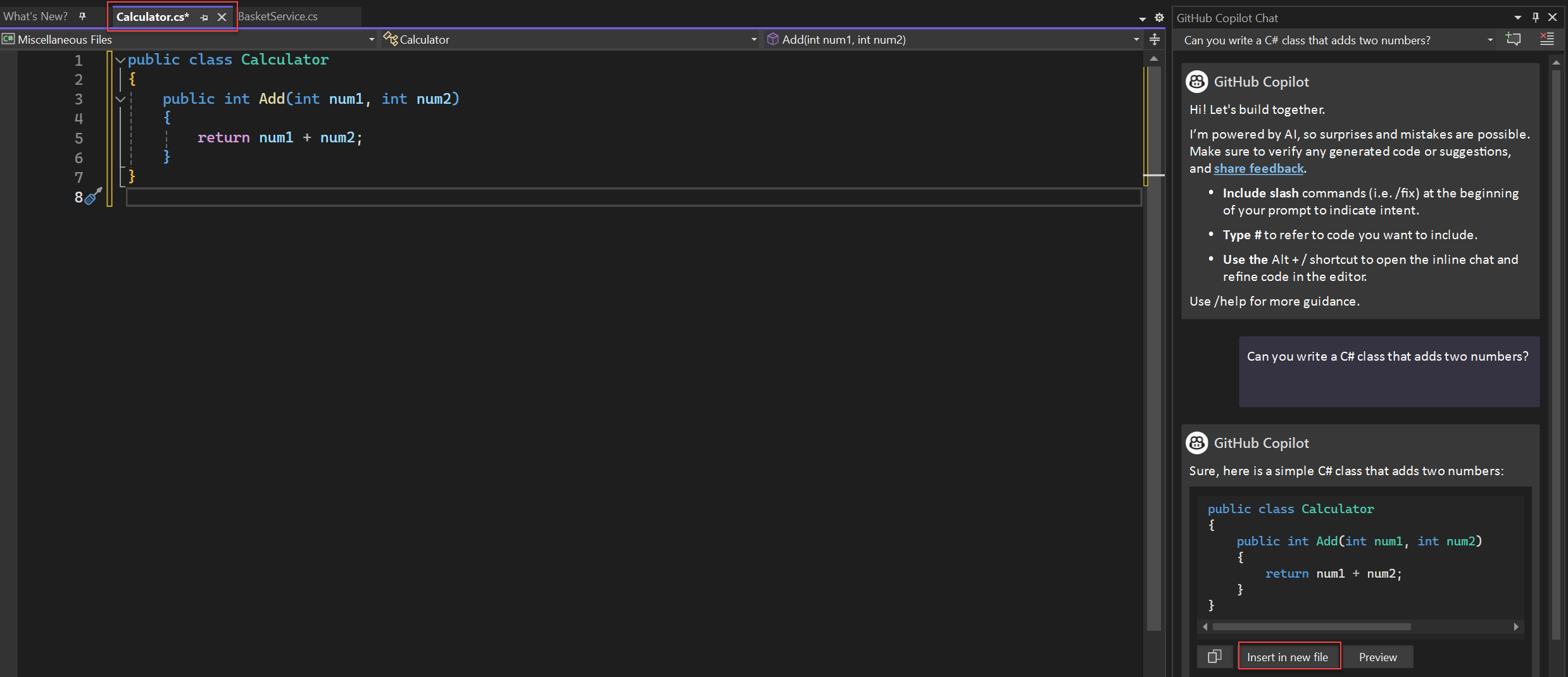
- If Copilot Chat offers code, the available actions depend on your Visual Studio version.
Select Copy code block to copy the suggestion, Add to new file to insert it in a new file, or Apply to preview it in your current file. In the diff view, review and refine the suggestion, then select Tab to apply it or Esc to discard it. A new file isn't saved by default.


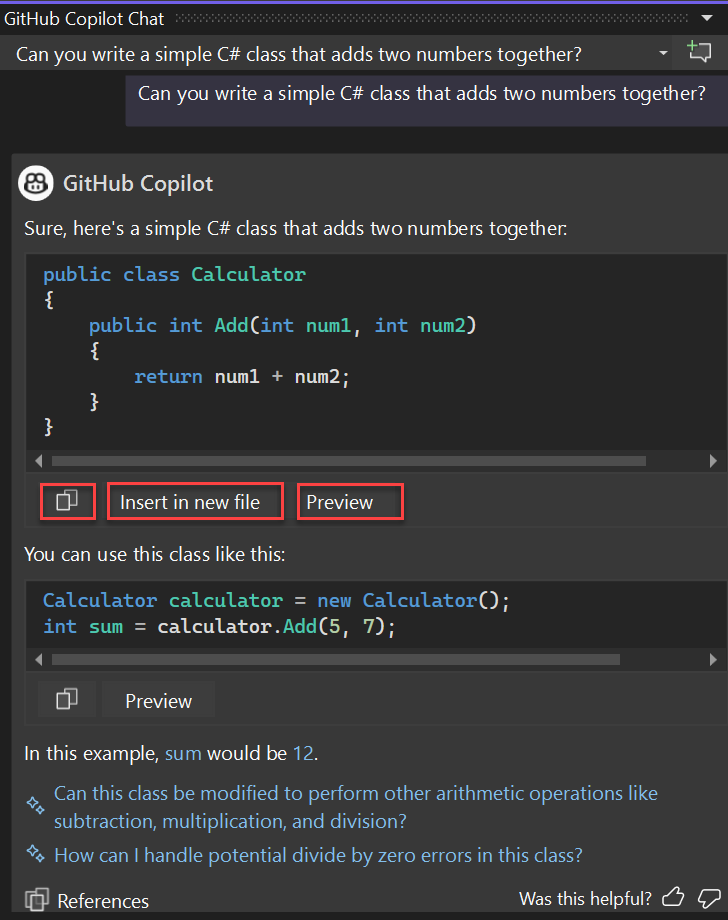
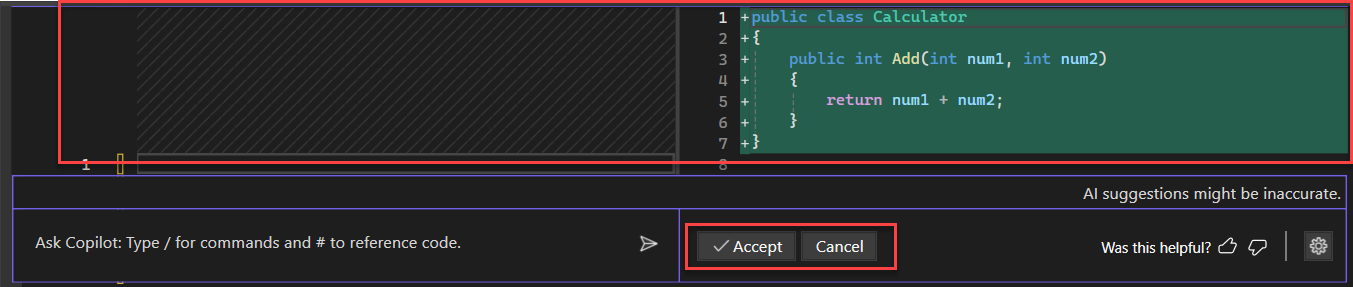
Select Copy code block to copy the suggestion, Insert in new files to insert it in a new file, or Preview to see it in your current file. In the diff view, review and refine the suggestion, then select Accept to apply it or Cancel to discard it. A new file isn't saved by default.
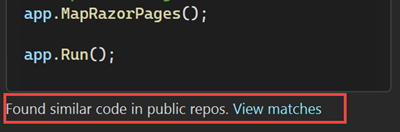
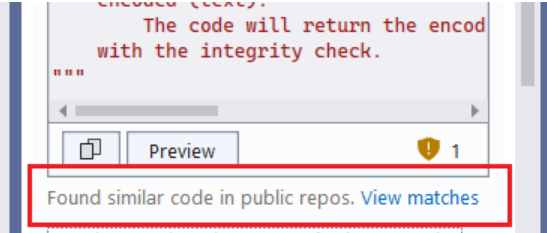
The code referencing feature in GitHub Copilot notifies you when suggestions match public code. You can view the matching code, its source file, and any associated licensing information directly within Visual Studio.
Ask questions in the inline chat view
You can ask your questions and see answers inline with the code in the editor window itself. With inline chat, you don't have to go back and forth to the chat window. We recommend this method to work with Copilot on questions that add to or update a currently open code file.
- In Visual Studio, right-click in the editor to open inline chat. The menu command differs by version:
Select Chat.

Select Ask Copilot.
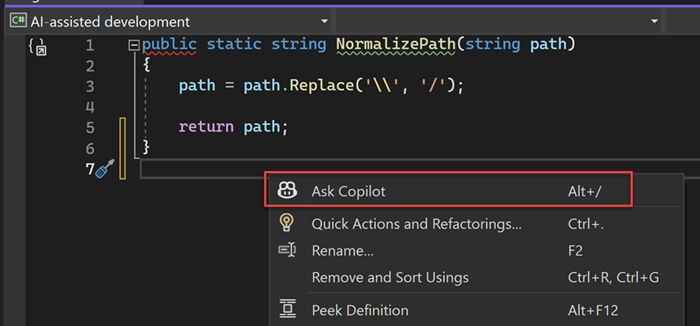
- Type a coding-related question in the Ask Copilot text box, and then select Enter or Send.

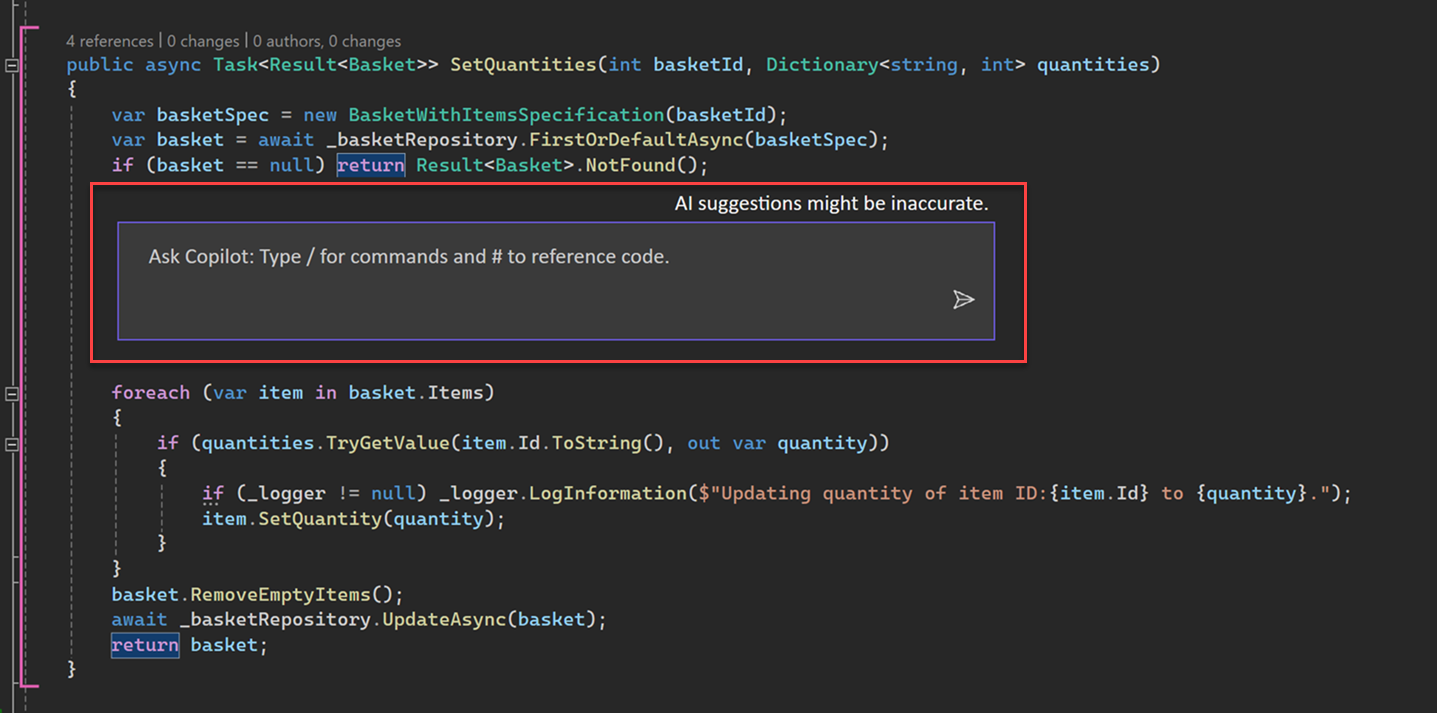
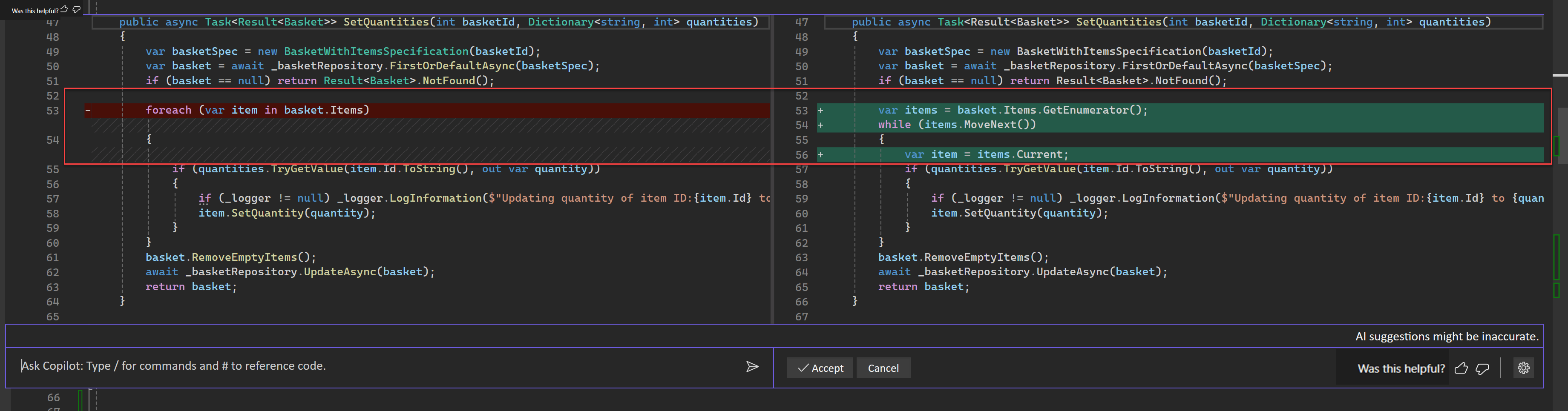
- Review and refine code suggestions in the diff view. The apply and discard controls differ by version:
Select Tab to apply the suggestions or Esc to discard them.

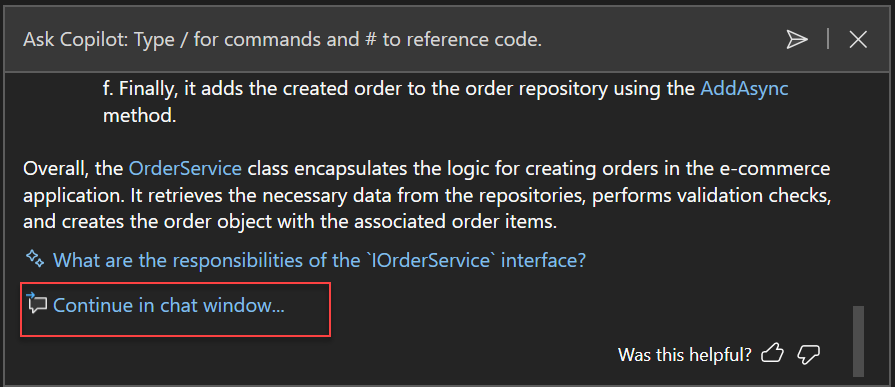
To continue the conversation in the chat window, select Copilot Actions > Add to Chat.

Select Accept to apply the suggestions or Cancel to discard them.
To continue the conversation in the chat window, select Continue in chat window.
- Close the inline chat by selecting Esc.
Attach images to chat prompts
With Visual Studio 17.14 and later, you can attach images in chat to add contextual input and generate better responses.
To attach an image to a prompt, paste an image from the clipboard or select the ➕ icon in the chat input. Then select Upload Image to upload an image from File Explorer. Copilot analyzes the image and uses it as more context to generate a better response.
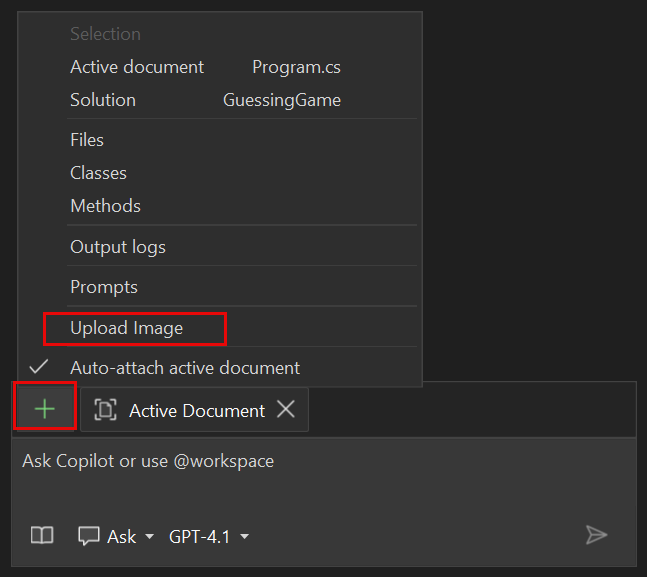
This feature can be handy when Copilot is helping you with UI development (for example, you attach an image of your design). The feature is also useful for debugging (for example, you attach a screenshot of the error).
Use any of the following image formats: PNG, JPEG, and GIF (single-frame only). You can attach up to three images per prompt.
Preview Markdown content
You can preview any Markdown content generated by Copilot Chat directly in the Visual Studio Markdown editor.
Emoji characters in chat and previewed Markdown content render in full color. For more information, see Use color emojis in Visual Studio.

When Copilot Chat generates Markdown content, select the Preview button at the upper-right corner of the chat window to see a rendered preview. From there, you can edit and save the Markdown content as needed. This feature is helpful when you want to quickly visualize and work on Markdown files without manually copying and pasting.
Generate Mermaid diagrams
Copilot Chat can generate various Mermaid diagrams, including architectural, flowchart, sequence, class, Gantt, and pie charts. You can then visualize complex data structures and workflows directly in the editor.
For example, you might use one or more of the following prompts:
- "Create a sequence diagram for the API call flow."
- "Visualize relationships between entities in this schema."
- "Create a Mermaid state diagram for the lifecycle of a task."
- "I'm new to this project, visualize major components and their relationships to help me onboard."
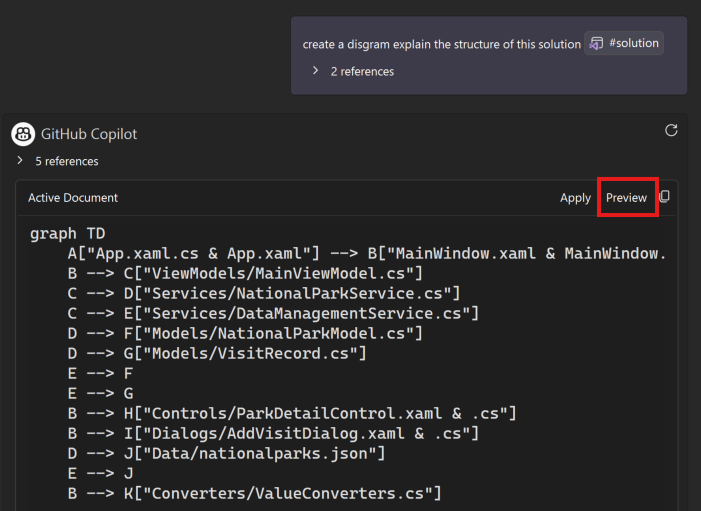
Copilot uses attached references and related files in your codebase to gather context, and then returns the Mermaid syntax in the chat window. Select Preview to open a new Markdown file and view the diagram. You can save or share the Markdown or rendered chart for future use.

Tip
You can use the Markdown preview controls to switch between preview modes and zoom in on complex Mermaid diagrams.