Note
Access to this page requires authorization. You can try signing in or changing directories.
Access to this page requires authorization. You can try changing directories.
Hyper-V Replica helps you protect your workloads by replicating virtual machines (VMs) between Hyper-V hosts running Windows Server. This article explains how to enable Hyper-V Replica on a failover cluster by using Windows Admin Center - Virtualization mode, Failover Cluster Manager, or PowerShell.
You can replicate between clusters, single hosts, or a combination of both. If you use a certificate for authentication, there's no Active Directory dependency between the hosts. Single hosts can either be domain members or be in a workgroup.
If you want to learn how to enable Hyper-V Replica on a single host, see Enable Hyper-V Replica on a single host. For more information about Hyper-V Replica and how it works, see Hyper-V Replica overview.
Prerequisites
Before you begin, make sure you meet the following prerequisites:
You have a Hyper-V cluster to receive the replicated VM. You also have another cluster or single host that runs the VM you want to replicate.
Decide on an authentication method:
If your clusters and hosts are joined to the same or trusted Active Directory domains, you can use Kerberos (HTTP) authentication.
If your clusters and hosts aren't domain joined or are in untrusted domains, or you also want to use encryption, you must use certificate-based (HTTPS) authentication. You need to have a valid certificate installed on each host, both sending and receiving. The certificate must meet the following requirements:
- Not be expired
- Have both Client and Server Authentication Enhanced Key Usage (EKU) attributes and an associated private key.
- Terminate at a valid root certificate.
- The subject common name (CN) or subject alternative name (SAN) must match the fully qualified domain name (FQDN) of the Hyper-V Replica Broker role you provide for the receiving cluster. If you're sending a VM from a cluster, you also need a certificate for the Hyper-V Replica Broker role FQDN on each primary host.
Network connectivity between the clusters and hosts. By default, if you use Kerberos authentication, replication uses HTTP over port 80. If you use certificate-based authentication, replication uses HTTPS over port 443.
A storage location on the receiving cluster that's available to all nodes to store the replicated VMs.
The Hyper-V Replica Broker role requires an IP address. Make sure that for the cluster network used for management, you either have a static IP address available in the subnet or you have DHCP available on the subnet.
A user account that has administrative privileges on both the primary and replica clusters or hosts.
Either a user account that is a domain administrator, or prestage a computer account in Active Directory for the Hyper-V Replica Broker role for the receiving cluster. For more information, see Prestage an account for a clustered service or application.
Enable the Hyper-V Replica Broker role
Before you can replicate VMs to a Hyper-V cluster, you need to enable the Hyper-V Replica Broker role. You configure the receiving cluster, not the primary cluster or host.
The Hyper-V Replica Broker is a clustered role that acts as the target for replication traffic. It provides a single point of contact for the primary server to connect to, even if the replica VM moves between nodes in the cluster.
To ensure you can fail a VM back to the original primary cluster or host after a failover event, configure both primary and replica clusters and hosts for replication.
Use Windows Admin Center - Virtualization mode, Failover Cluster Manager, or PowerShell to enable and configure the Hyper-V Replica Broker role. Select the relevant tab for instructions.
Important
Configuring Hyper-V Replica by using Windows Admin Center - Virtualization mode is currently in PREVIEW. This information relates to a prerelease product that may be substantially modified before it's released. Microsoft makes no warranties, expressed or implied, with respect to the information provided here.
For more information about Windows Admin Center - Virtualization mode, see Windows Admin Center - Virtualization mode overview.
To enable and configure the Hyper-V Replica Broker by using Windows Admin Center - Virtualization mode:
Go to your URL for Windows Admin Center - Virtualization mode and sign in.
In the resources pane, select the cluster you want to replicate to.
From the list of tools for the cluster, select Settings.
Under Hyper-V Host Settings, select Replication.
Select Configure Hyper-V Replica Broker to open the broker configuration pane.
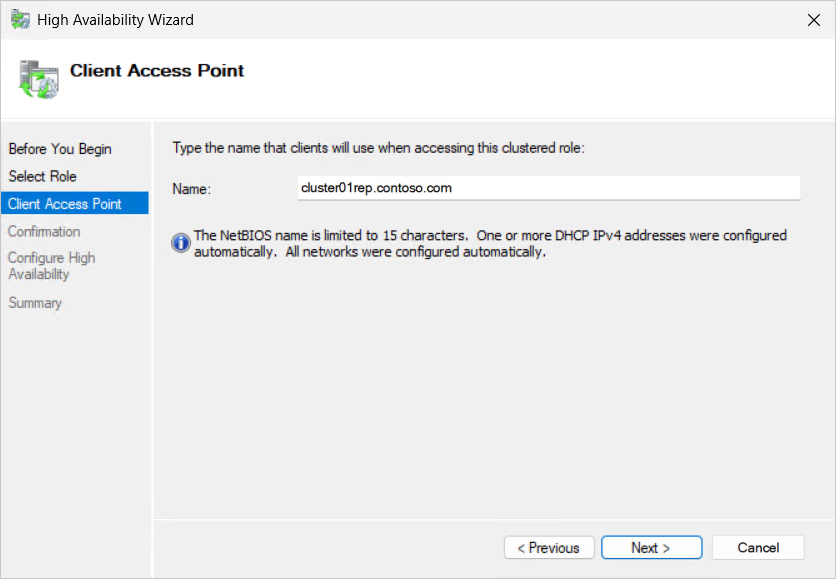
For the Client Access Point, complete the following information:
For Broker Name, enter the name you want to use for the Hyper-V Replica Broker. The name is limited to 15 characters and must be unique in your Active Directory domain.
For Available Networks, select the network to use for the broker and enter an IP address if DHCP isn't available.
Select Next to view the Summary, which shows the broker name, IP address, and organizational unit (OU). Review the information and select Configure.
A notification confirms the broker role is being configured. Wait for the configuration to complete. Once completed, the Replication settings page shows the broker name and state.
After the broker is configured, configure the replication settings for the cluster. On the Replication settings page, make the following changes:
Check the box Enable this computer as a Replica server. The broker name and state are displayed at the top of the page.
For Authentication and Ports, check the box for the authentication method you want to use from Use Kerberos authentication (HTTP) or Use Certificate-based authentication (HTTPS). Change the port if you don't want to use the default ports. If you're using certificate-based authentication, select Select to choose the certificate that matches the requirements.
For Authorization and Storage, select either Allow replication from any authenticated server to allow the replica server to accept VM replication traffic from any primary server that authenticates successfully, or Allow replication from the specified servers to accept traffic only from the primary servers you specifically select. For both options, specify where the replicated VHDs should be stored. For a cluster, this location needs to be accessible by all nodes, such as a Cluster Shared Volume (CSV) at
C:\ClusterStorage\Volume1. Select Browse to select a storage location.If you select Allow replication from the specified servers, select Add to specify the FQDN of a primary host, a location to store replica files, and a trust group.
Select Save to save your settings.
Verify the Hyper-V Replica Broker state is Online before you attempt to replicate VMs to the cluster.


Enable Windows Firewall rules for Hyper-V Replica
To allow replication between the primary and replica clusters and hosts, traffic must get through the Windows Firewall (or any other third-party firewalls). When you install the Hyper-V role on each host, the Windows Firewall creates exceptions for HTTP (80) and HTTPS (443), but it doesn't enable them by default. You need to enable the appropriate rules for all receiving hosts.
You can enable the rules by using your preferred method of managing the Windows Firewall, such as centrally using Group Policy, or locally on each node by using the Windows Firewall with Advanced Security console or PowerShell. For more information about managing the Windows Firewall and how-to guides, see Windows Firewall tools.
The rules you need to enable depend on the authentication method you choose when you configure the Hyper-V Replica Broker role:
- Enable
Hyper-V Replica HTTP Listener (TCP-In)for Kerberos (HTTP) authentication. - Enable
Hyper-V Replica HTTPS Listener (TCP-In)for certificate-based (HTTPS) authentication.
Test replication configuration
After you enable and configure Hyper-V Replica and enable the appropriate Windows Firewall rules, test the configuration to ensure that the primary cluster or host can connect to the replica host as expected.
You can use the PowerShell cmdlet Test-VMReplicationConnection to test the connection, as shown in the following examples. Be sure to replace placeholder <values> with your own.
Open a PowerShell session as an administrator on one of the hosts that you want to replicate from, or connect remotely by using the Enter-PSSession cmdlet on a device you use to manage the cluster or host.
Use one of the following example commands:
To test a connection to a replica cluster by using Kerberos authentication, run the following command:
Test-VMReplicationConnection -ReplicaServerName '<Hyper-V Broker role FQDN>' -ReplicaServerPort 80 -AuthenticationType KerberosTo test a connection to a replica cluster by using certificate-based authentication, run the following command. You need the thumbprint of a valid certificate for Hyper-V Replica on the primary host or cluster.
Test-VMReplicationConnection -ReplicaServerName '<Hyper-V Broker role FQDN>' -ReplicaServerPort 443 -AuthenticationType Certificate -CertificateThumbprint AA11BB22CC33DD44EE55FF66AA77BB88CC99DD00
For either of these example commands, here's the output you should see if the test is successful:
The connection to the specified Replica server with the specified parameters was successful.