Note
Access to this page requires authorization. You can try signing in or changing directories.
Access to this page requires authorization. You can try changing directories.
Use a fixed control to display read-only page fields in a matrix-like layout. Ordinary FastTabs arrange fields automatically and adjust to the available screen space. Learn more in Field arrangement on FastTabs and Arranging fields using grid and fixed controls.
Important
Fields in a fixed layout aren't editable, even if Editable = true. A drilldown can open another page where users can edit the underlying data if that page and their permissions allow editing. Learn more in Editable property.
How a fixed control arranges fields
A fixed control defines a specific set of fields. Use it to compare statistical values across columns, such as totals for different time periods. Page 151, Customer Statistics, and page 40, Item Journal, contain fixed controls in the base application.
Group controls inside the fixed control define columns. Each group caption becomes a column heading, and the field captions from the first group become row headings.
Add fields to a fixed control
Fixed layouts use equal column widths. Place the fixed control inside a page group, then add a group for each column. Place the fields for each column inside that group to provide column and row headings.
Example of a fixed control
The following example uses a fixed control to display four page variables inside the Fixed Layout group.
page 50114 "Fixed Control Example"
{
    layout
    {
        area(content)
        {
            group("Fixed Layout")
            {
                fixed(DefiningFixedControl)
                {
                    group("Group Caption")
                    {
                        field("Field 1"; "Field 1")
                        {
                            ApplicationArea = All;
                            Caption = 'Field 1';
                            ToolTip = 'Displays the first example value.';
                        }
                        field("Field 2"; "Field 2")
                        {
                            ApplicationArea = All;
                            Caption = 'Field 2';
                            ToolTip = 'Displays the second example value.';
                        }
                        field("Field 3"; "Field 3")
                        {
                            ApplicationArea = All;
                            Caption = 'Field 3';
                            ToolTip = 'Displays the third example value.';
                        }
                        field("Field 4"; "Field 4")
                        {
                            ApplicationArea = All;
                            Caption = 'Field 4';
                            ToolTip = 'Displays the fourth example value.';
                        }
                    }
                }
            }
        }
    }
    var
        "Field 1": Integer;
        "Field 2": Integer;
        "Field 3": Integer;
        "Field 4": Integer;
}
The following schematic shows the column heading and four row headings.
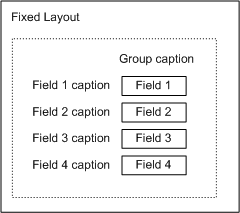
Add more groups to create more columns. Only field captions from the first column define the row headings. Field captions in the other columns don't create extra row headings.
Column header alignment
Starting in Business Central 2023 release wave 1, version 22.0, column headers are right-aligned. Column headers are left-aligned in earlier releases. You can't explicitly specify field-value alignment.
Use multiple fixed controls
You can place multiple fixed controls in a group. Each fixed control defines its own columns. Don't rely on the containing group to arrange multiple fixed controls into two columns.
Use the group structure shown in the example for column and row headings. Learn more in Supported structure for using the grid and fixed controls.
Related information
Field arrangement on FastTabs
Pages overview
Arranging fields using grid and fixed controls
Arranging fields in rows and columns using the grid control